

How to create and configure a strategy
A strategy can be created and configured from different places in the system. In this guide, we will create it from the Strategies menu section.
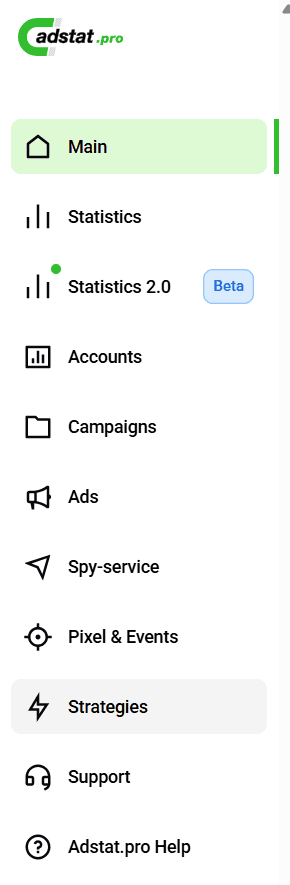
To start using this tool, open your Adstat.pro account and select the Strategies menu item.
Click the Create strategy button

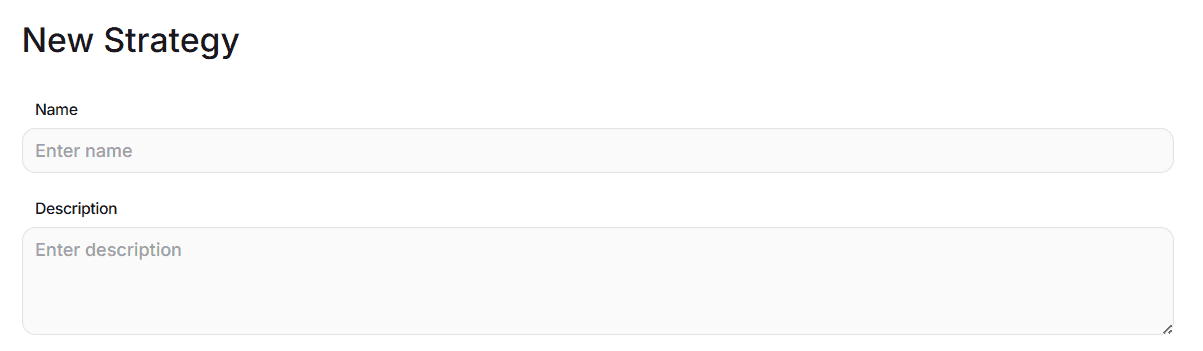
Strategy name and description
These fields help you find the strategy when binding it to ads and remember why the strategy was created.
Scenarios
Each strategy can include up to 8 scenarios. A scenario is an individual condition + action setup. Scenarios are independent and run in parallel.
Example:
Scenario 1. If impressions are low, increase CPM.
Scenario 2. If impressions are high, decrease CPM.
This way, you can achieve higher efficiency with lower costs.

Conditions and actions for a scenario
When a configured condition is met, the action is executed automatically by the system.
If block. Conditions
Select: Metric -> Metric evaluation period -> Comparison value
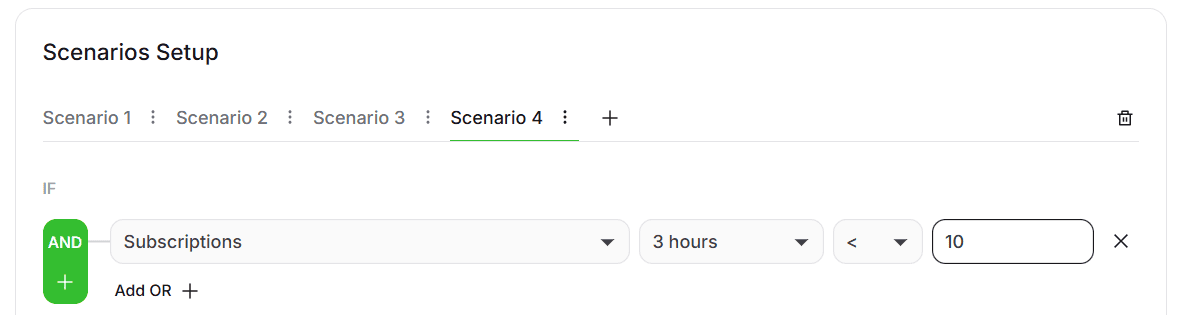
Available metrics:
- Remaining ad budget
- Current CPM
- Ad spend
- Subscriptions
- Impressions
- CPA
- CPC (cost per click)
- CTR (click-through rate)
- CR (subscription conversion to channel or bot start)
- Clicks
Metric evaluation period is the time window used to analyze the selected metric. Available values:
- Last 10 minutes
- Last 30 minutes
- Last 1 hour
- Last 3 hours
- Last 6 hours
- Last 12 hours
- Last 24 hours
- Last 3 days
- Last 7 days
- Last 14 days
- Last month
- Last 3 months
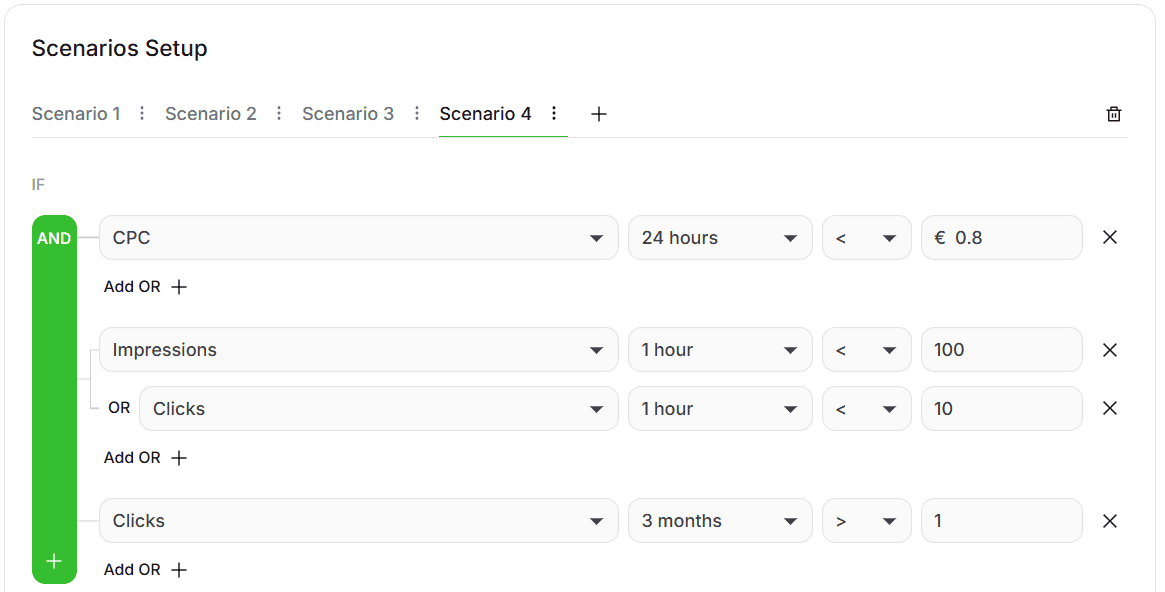
Each row is a separate condition. You can add multiple conditions and combine them using logical AND / OR. With AND, all linked conditions must be true. With OR, at least one linked condition must be true.
In the example below, 3 condition groups must trigger for the action to run:
- by CPC
- by Impressions OR Clicks
- by Clicks
Then block. Actions
Select: Action to execute automatically -> Value to change the selected parameter (in EUR) -> Limit to cap budget or CPM changes.
⚠️ We recommend setting limits so you can be sure that cost or budget does not increase too much.
Available actions:
- Increase budget by — use this when you do not want an effective campaign to stop due to insufficient budget.
- Increase CPM by
- Decrease CPM by
- Stop ad
- Withdraw the full budget. Budget withdrawal happens no earlier than 10 minutes after the event is triggered.

You can add multiple actions, but make sure they do not conflict. For example, it makes no sense to stop an ad and add budget at the same time.
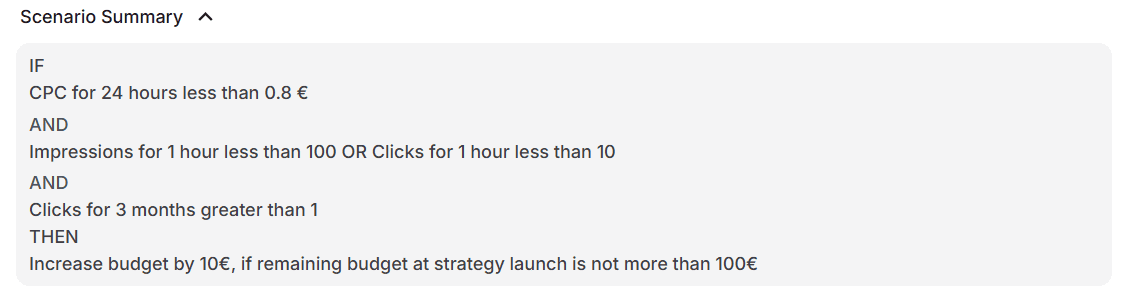
Summary block
In this block, you see the strategy as text and can double-check everything before saving.
Full strategy setup:
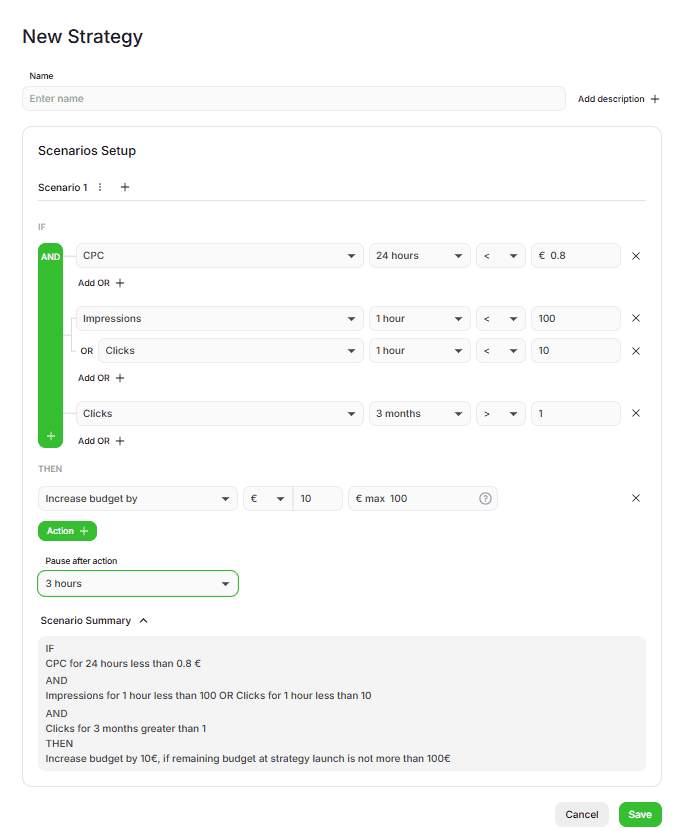
Pause after action trigger
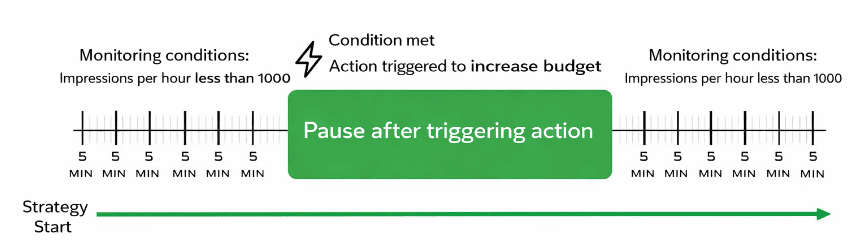
By default, scenario conditions are checked every 5 minutes. This value is fixed in the system.
The Pause after action trigger parameter defines a period during which the system accumulates data and ignores condition changes.
Example settings:
Condition: if impressions for the last hour are less than 1000
Then action: increase budget by 100
Pause: 3 hours
What this means:
- After the strategy is enabled, the system starts checking conditions immediately every 5 minutes.
- As soon as the condition is met, the system executes the action and pauses checks for 3 hours.
Available values:
- 10 minutes
- 1 hour
- 2 hours
- 3 hours
- 12 hours
- 1 day