

S2S Postbacks
S2S postbacks (server-to-server postbacks) let you send conversions from your tracker or CRM to Adstat. When a user who came from a Telegram Ads ad completes a target action — signs up or makes a purchase on your website — the tracker sends a request to the Adstat URL, and the event appears in the Statistics section in the Leads and Sales columns. The request goes directly from server to server, without the user's browser.
This guide uses the Keitaro tracker as an example. In Keitaro terms, Adstat acts as a traffic source: the tracker receives clicks from Adstat ads and sends conversions back to Adstat.
How It Works
- You add a tracker campaign URL with the
creative_id={{ad_id}}parameter to your ad. When the ad is created, Adstat replaces{{ad_id}}with the ad ID. - A user clicks the ad in Telegram. The tracker records the click and stores the ad ID.
- The user completes a target action on the website. The affiliate network or your CRM reports the conversion to the tracker.
- The tracker sends an S2S postback to the Adstat URL with the ad ID and the event type.
- Adstat links the event to the ad by its ID and shows it in statistics.
Important
Without the creative_id parameter in the campaign URL, Adstat cannot tell which ad a conversion belongs to. Such an event will not appear in statistics.
Adstat Postback URL
The postback URL is on the S2S Postbacks page in the Data Sources section. Click Copy link to copy the base URL.
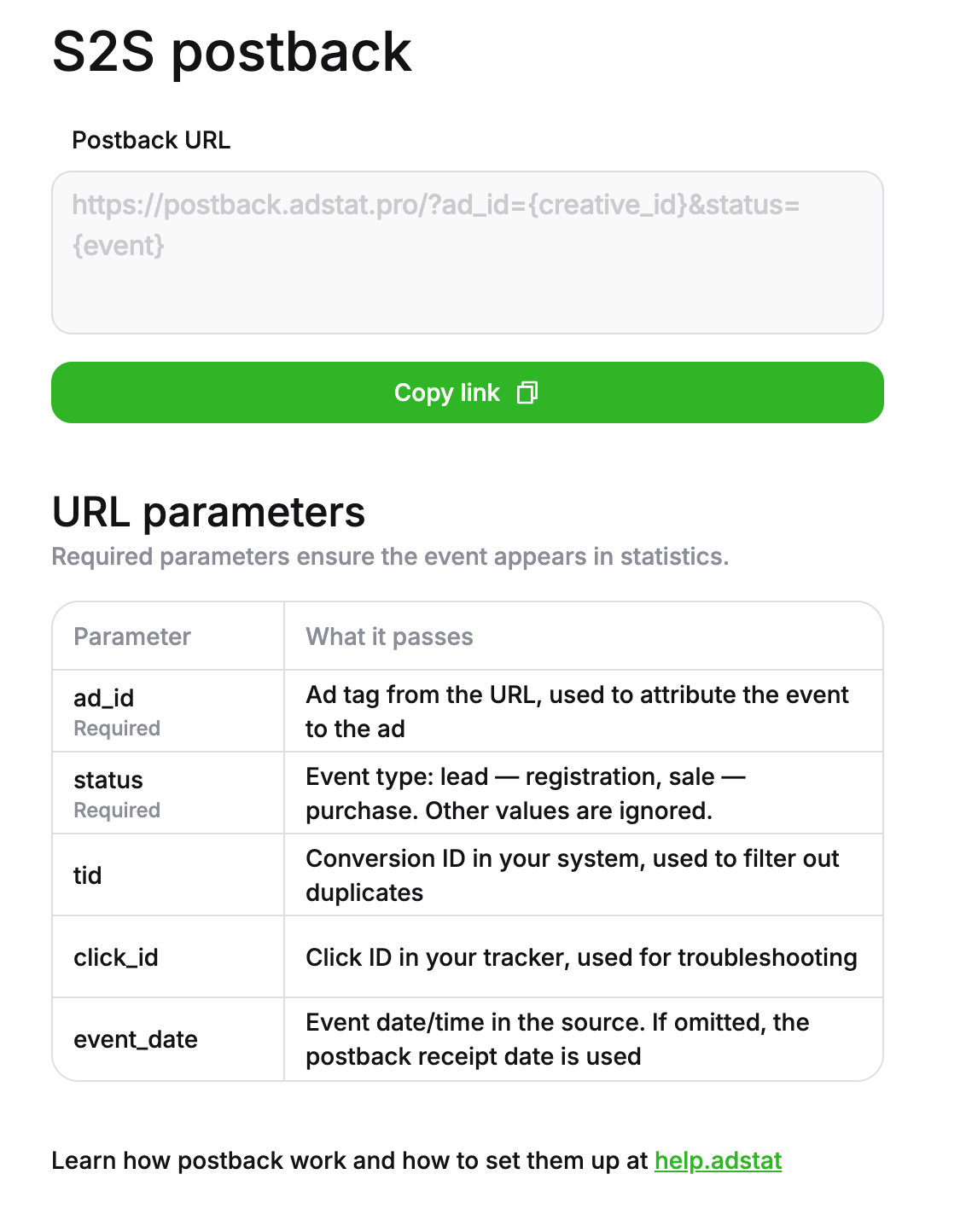
Adstat accepts postbacks in the following format:
https://postback.adstat.pro/?ad_id=<ad ID>&status=<lead or sale>For example: https://postback.adstat.pro/?ad_id=12345&status=lead.
In the tracker, replace <ad ID> and <lead or sale> with tracker macros. The tracker substitutes real values when sending the postback. The other parameters from the table below are optional.
URL Parameters
| Parameter | Required | Description |
|---|---|---|
ad_id | Yes | The ad ID received with the click. Used to link the event to the ad |
status | Yes | Event type: lead — sign-up, sale — purchase. Other values are ignored |
tid | No | Conversion ID in your system. Used to filter out duplicate postbacks |
click_id | No | Click ID in your tracker. Useful for troubleshooting |
event_date | No | Date and time of the event in the source |
Event date
If event_date is missing or has an invalid format, the event date is the actual time Adstat received the postback.
Setting Up Keitaro
The setup consists of four steps:
- Create an Adstat traffic source in Keitaro.
- Attach the source to a campaign.
- Add the campaign URL to your Adstat ads.
- Check that postbacks arrive.
Step 1. Create a Traffic Source
A traffic source in Keitaro is a template. It defines which parameters come with a click and where to send conversions. Keitaro has no ready-made Adstat template, so create the source manually.
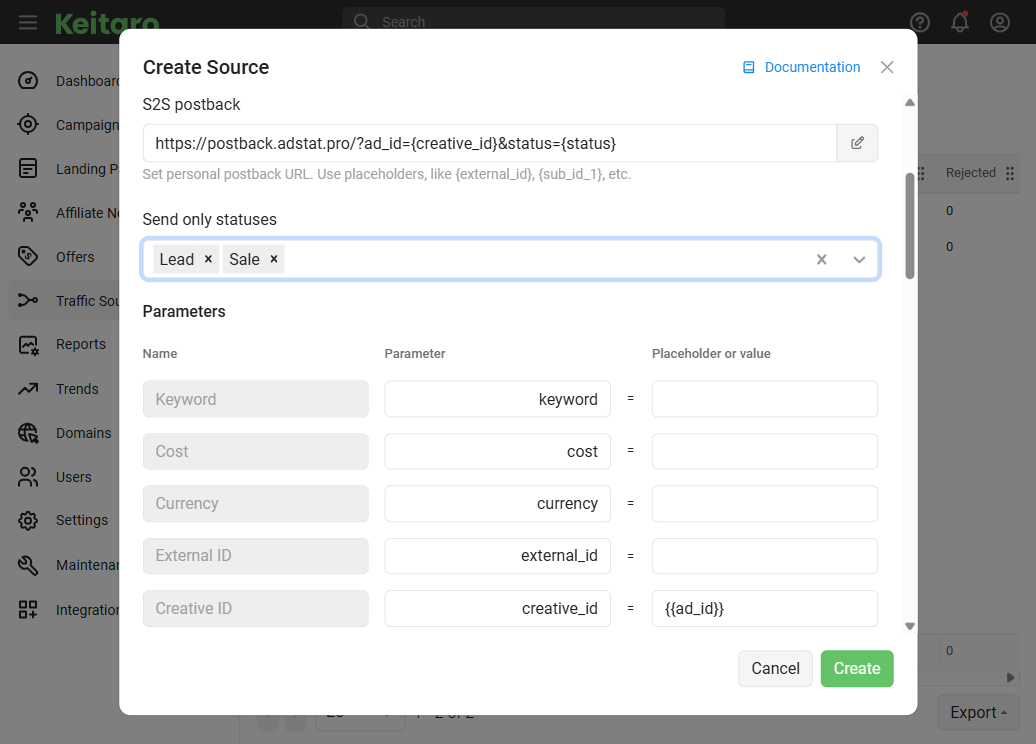
In Keitaro, open Sources and click Create.
In the Name field, enter a clear name, for example
Adstat (Telegram Ads).In the S2S postback field, paste the Adstat URL with Keitaro macros:
https://postback.adstat.pro/?ad_id={creative_id}&status={status}This is the minimal version. To also pass the conversion ID, click ID, and event date, use the extended URL:
https://postback.adstat.pro/?ad_id={creative_id}&status={status}&tid={tid}&click_id={subid}&event_date={conversion_time:Y-m-d H:i:s,UTC}The URL uses Keitaro macros. When sending a postback, the tracker replaces them with real values:
Keitaro macro Adstat parameter Value {creative_id}ad_idThe ad ID received with the click {status}statusConversion status: lead,sale{tid}tidTransaction (conversion) ID {subid}click_idClick ID in Keitaro {conversion_time:Y-m-d H:i:s,UTC}event_dateConversion date and time in UTC Only
ad_idandstatusare required. You can remove the optional parameters if you don't need them.In the Send only statuses field, select lead and sale. Adstat ignores other statuses (
rejected,rebill), so there is no need to send them.In the Parameters block, find the Creative ID row and fill it in:
Name (1st column) Parameter (2nd column) Value (3rd column) Ad creative_id{{ad_id}}- In the second column, keep
creative_id(the default): the parameter is added to the campaign URL under this name. - In the third column, enter
{{ad_id}}: an Adstat macro. When the ad is created, Adstat replaces it with the actual ad ID.
Keitaro stores the received value as the click's Creative ID and returns it in the postback via the
{creative_id}macro.- In the second column, keep
Click Save.
Step 2. Attach the Source to a Campaign
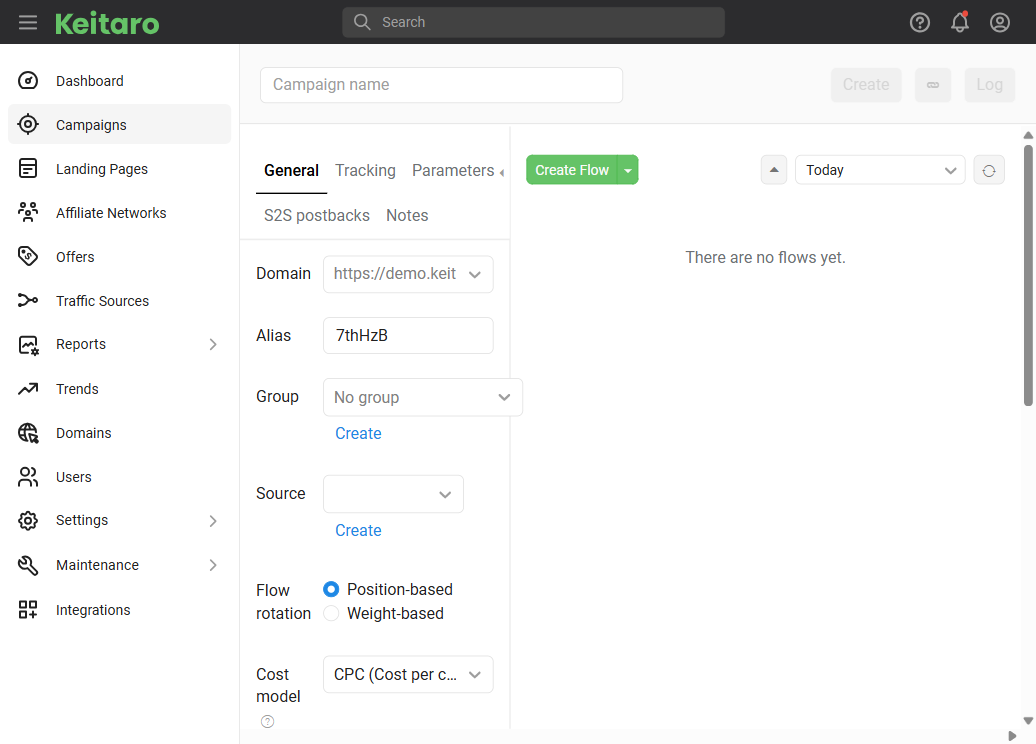
Open the campaign settings in Keitaro.
In the Source field, select the
Adstat (Telegram Ads)source you created.Keitaro automatically adds the source parameters to the Campaign URL. It will look similar to this:
https://your-tracker-domain.com/AbCdEf?creative_id={{ad_id}}Save the campaign and copy the campaign URL.
TIP
Once the source is selected, the S2S postback to Adstat is attached to the campaign automatically. You don't need to add it separately in the S2S Postbacks tab.
Step 3. Add the Campaign URL to Your Adstat Ads
In Adstat, create an ad or open an existing one.
In the Channel, bot, or website URL field, paste the Keitaro campaign URL from Step 2.
Make sure the URL contains the
creative_id={{ad_id}}parameter. You can type it manually or add it in the Promoted URL with parameters window: set thecreative_idparameter to{{ad_id}}and click Insert into the ad.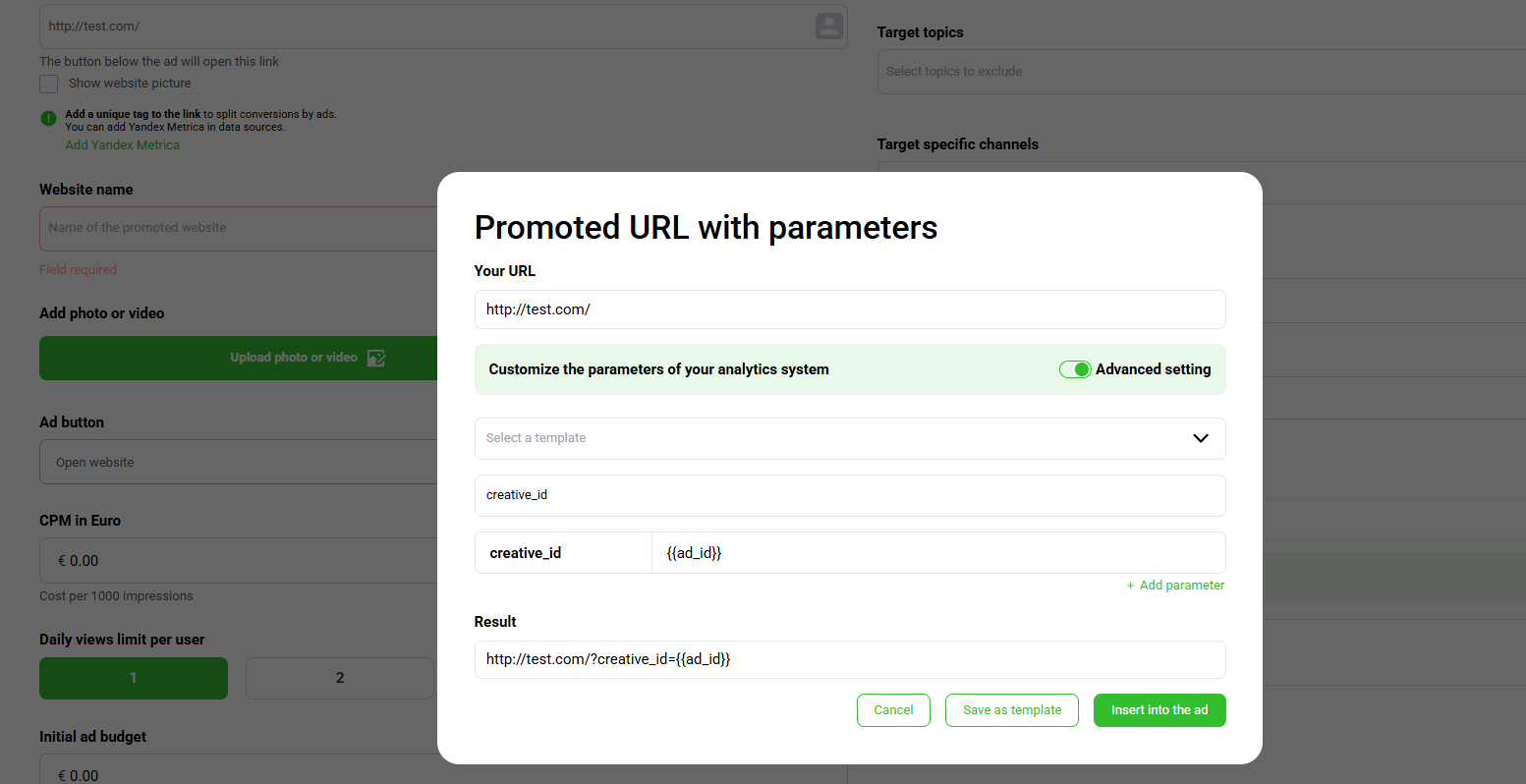
After that, the ad URL will contain the parameter:
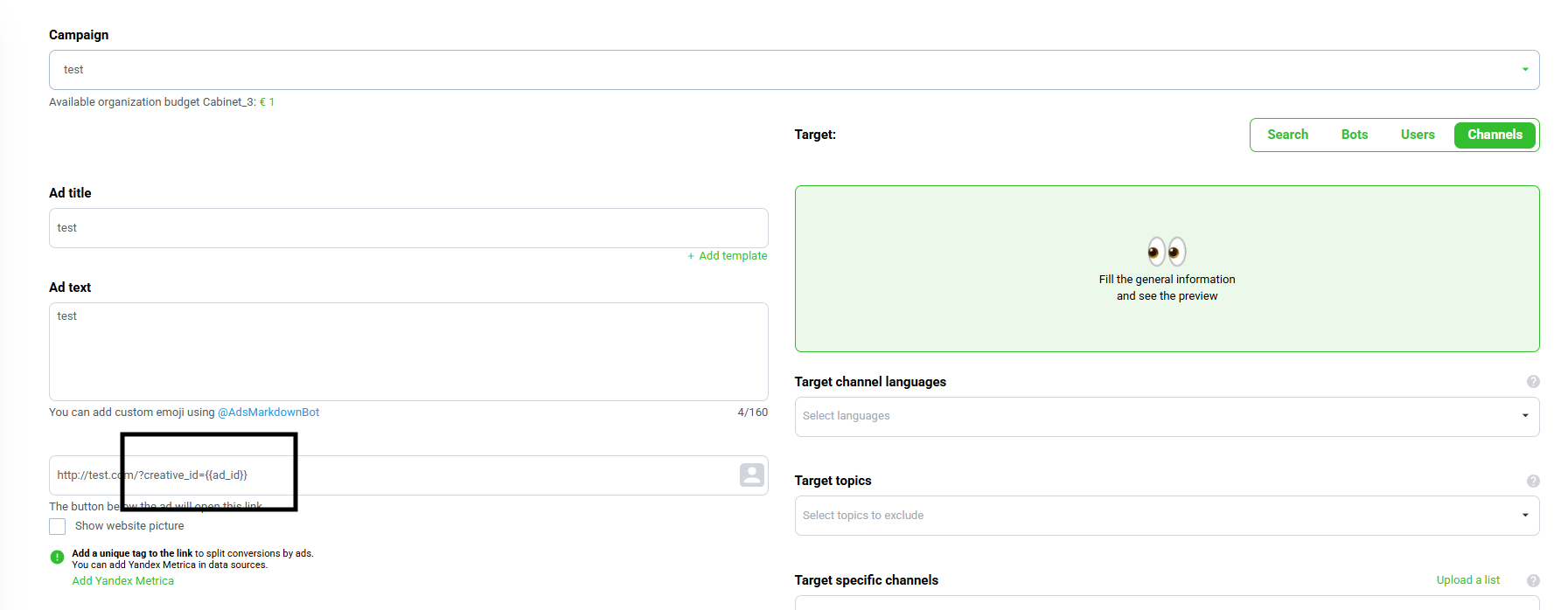
Save the ad. Adstat replaces
{{ad_id}}with the ad ID — after creation, the URL will contain, for example,creative_id=12345.
You can use the same campaign URL in all ads: each ad gets its own ID.
Learn more about creating ads in the Ads section.
Important
- Changing the URL in an ad sends it back to moderation.
- The URL must be complete, starting with
https://. URL shorteners are not allowed by Telegram Ads rules. - Postbacks only work for clicks made after the URL with the
creative_idparameter was added to the ad.
Step 4. Check That Postbacks Arrive
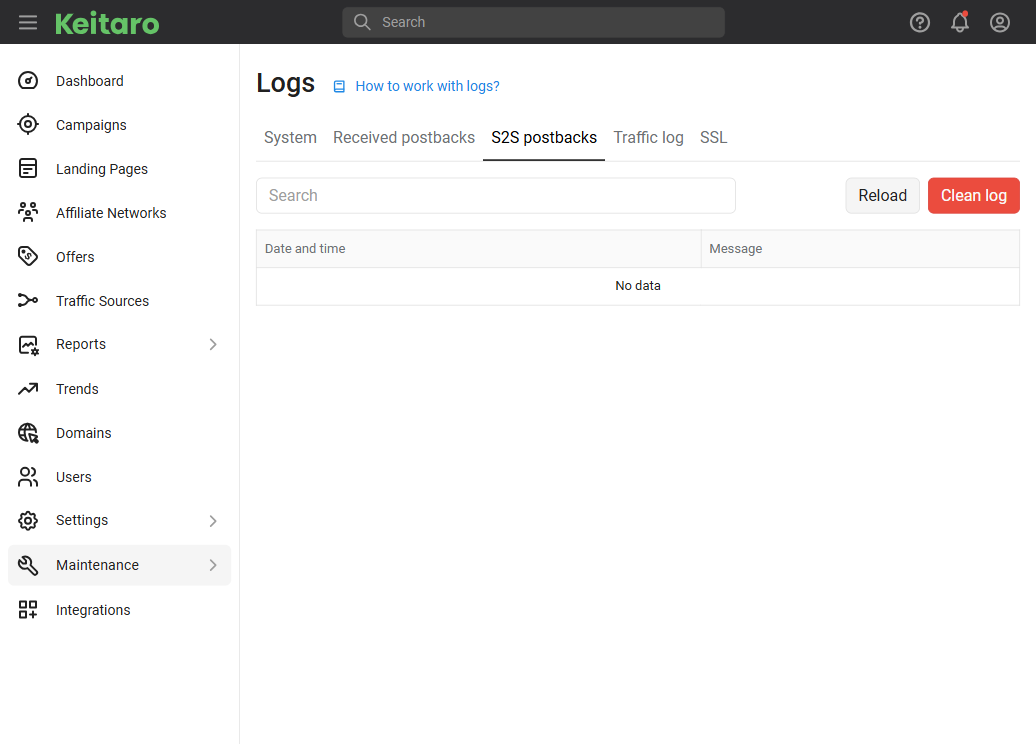
- Follow the ad URL and complete a test target action — or wait for the first real conversion.
- In Keitaro, open Maintenance → Logs → S2S postbacks. The log shows which URL the conversion was sent to and what response Adstat returned.
- Make sure the macros in the sent URL were replaced with values:
ad_idcontains the ad ID, andstatusisleadorsale. - Open the Statistics section in Adstat, select the By ads breakdown, and enable the Leads and Sales columns using the gear icon.
How Events Are Counted
- Leads — the number of postbacks with the
leadstatus. - Sales — the number of postbacks with the
salestatus. - Postbacks with other statuses are ignored.
- If
tidis passed, repeated postbacks with the same conversion ID are not counted twice. Passtidif your tracker may resend the same conversion. - An event is counted in statistics by the date from
event_date. If the parameter is missing or has an invalid format, the actual time the postback was received is used. - Statistics in Adstat are shown in the UTC time zone.
If Conversions Don't Appear in Statistics
Keitaro doesn't send the postback
- Check that the Adstat source is selected in the campaign settings.
- Check that the Send only statuses field in the source settings includes the status of the conversion received by the tracker.
- Check the log: Maintenance → Logs → S2S postbacks.
The postback URL has an empty ad_id, or {creative_id} instead of a value
- Check that the Adstat ad uses the campaign URL with the
creative_idparameter, and that after the ad was created it contains the ad ID rather than an empty value. - Check that in the source parameters, the Creative ID row has
creative_idin the second column and{{ad_id}}in the third. - Open the click log in Keitaro, add the Creative ID column, and make sure the value arrives with the click.
The postback was sent, but the event isn't visible in Adstat
- Check the
statusvalue: onlyleadandsaleare counted. - Check that
ad_idin the postback matches the ad ID in Adstat. - Check the statistics filters: the period, account, and advertising object must include the ad.
- If the event landed on the wrong day, check
event_date: with an invalid format, the event date becomes the time the postback was received.