Ads
The Ads section lets you create, manage, and analyze ads in the advertising accounts available to you.
Main Section Elements
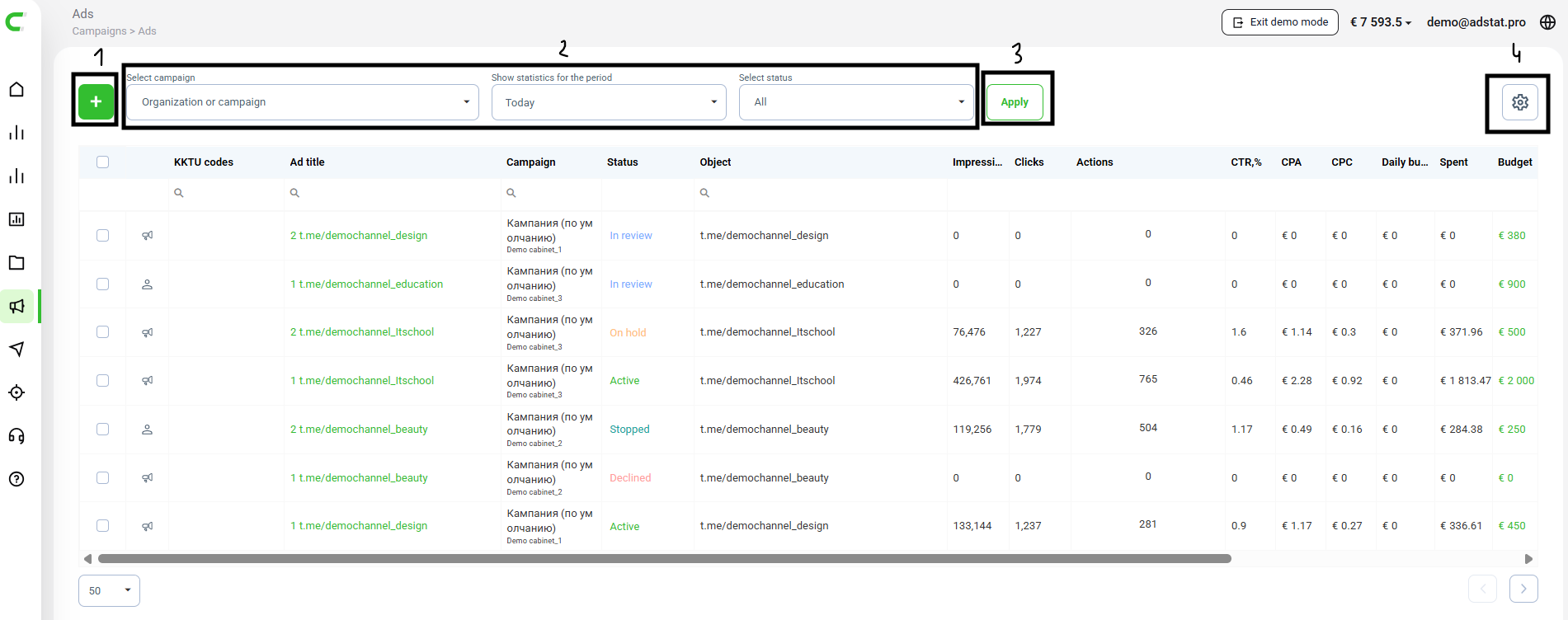
The top part of the section contains the main actions and display settings:
- Create ad — opens the form for creating a new ad.
- Data grouping — configures how the ad list is displayed by selected parameters.
- Apply grouping — confirms the selected parameters and refreshes the table.
- Statistics column settings — lets you choose which metrics are shown in the table, such as impressions, clicks, spend, and other metrics.
Ad Status
Depending on the lifecycle stage, the ad may have the following statuses:
- Stopped — the default status shown for all new ads without a budget. It is also shown when the ad's budget has run out.
- In Review — the status shown while the moderation team is checking the ad content before it can be displayed.
- Declined — the ad must be changed before it can go live. A more detailed explanation and a link to the relevant guidelines can be seen inside the ad.
- Active — the ad is live, and sponsored messages are appearing on Telegram according to the ad's parameters.
- On Hold — the ad is paused, but it is ready to become active again.
- Deleted — the ad no longer exists, but its information is still stored inside the Adstat.Pro archive database.
Managing Statistics Columns
You can rearrange statistics columns in the order you need. Hold the required column name and drag it across the header panel.

Available Grouping Options
Grouping helps you find the required ads faster and analyze them in the right breakdown.
By Ad Account or Campaign
Shows ads from the selected Telegram Ads account or from a specific campaign.
By Period
Available time ranges:
- All time
- Yesterday
- Today
- Current month
By Ad Status
You can filter ads by their current status:
- Active
- Paused
- Deleted
- Stopped
- In review
- Rejected
Bulk Actions
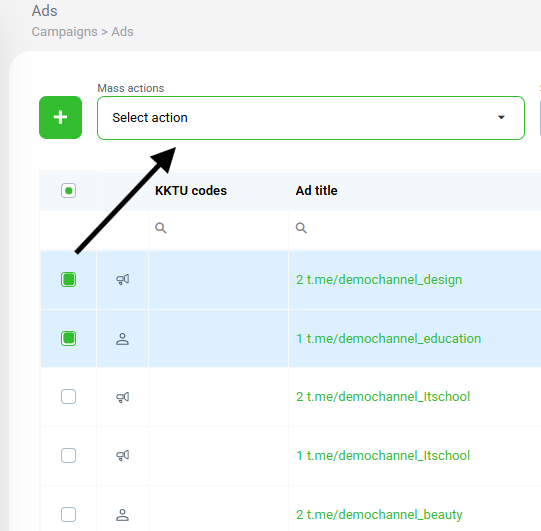
When you select one or more ads, the Bulk actions button becomes available.
Important
Bulk actions work only for ads that belong to the same Telegram Ads account.
Available Actions
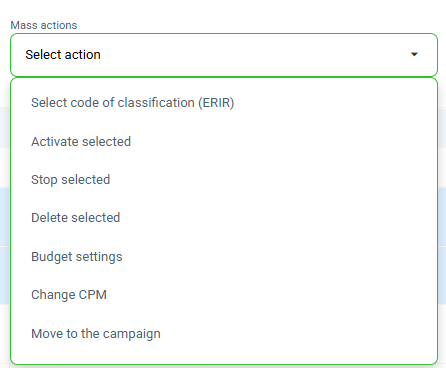
- Select OKVED/KKTU category
Assigns a KKTU category to the selected ads in bulk.
Relevant for accounts with ad labeling enabled.
Activate / Stop selected
Starts or stops several ads at once.Delete selected
Deletes the selected ads.Budget settings
Changes the budget for the selected ads in bulk.
Important
This action changes the total ad budget, not the daily limit.
Change CPM
Changes the CPM bid for the selected ads in bulk.Move to campaign
Moves the selected ads to a campaign.
Ad Creation Process
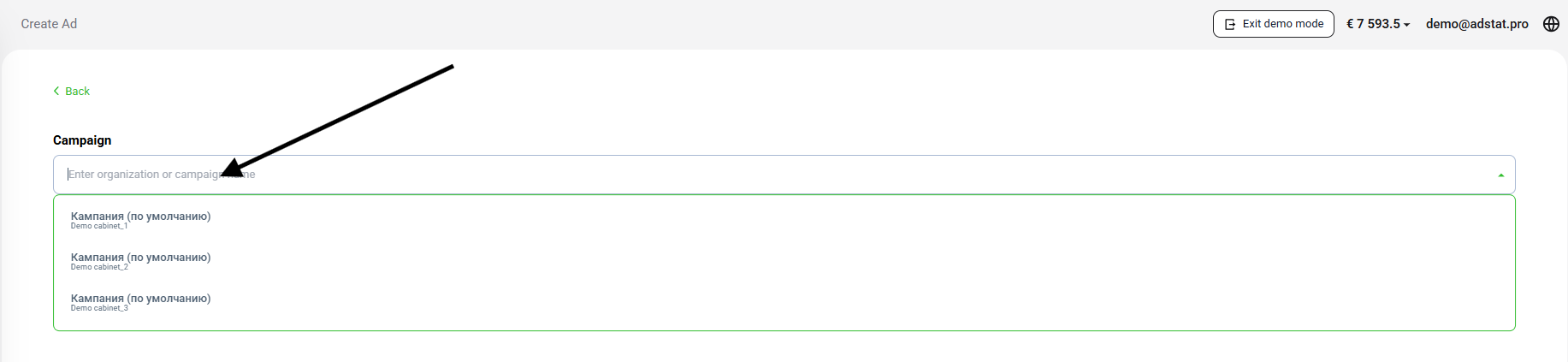
1. Select an Ad Account or Campaign
First, select the Telegram Ads account or campaign where the ad should be created.
2. Fill in the Main Information
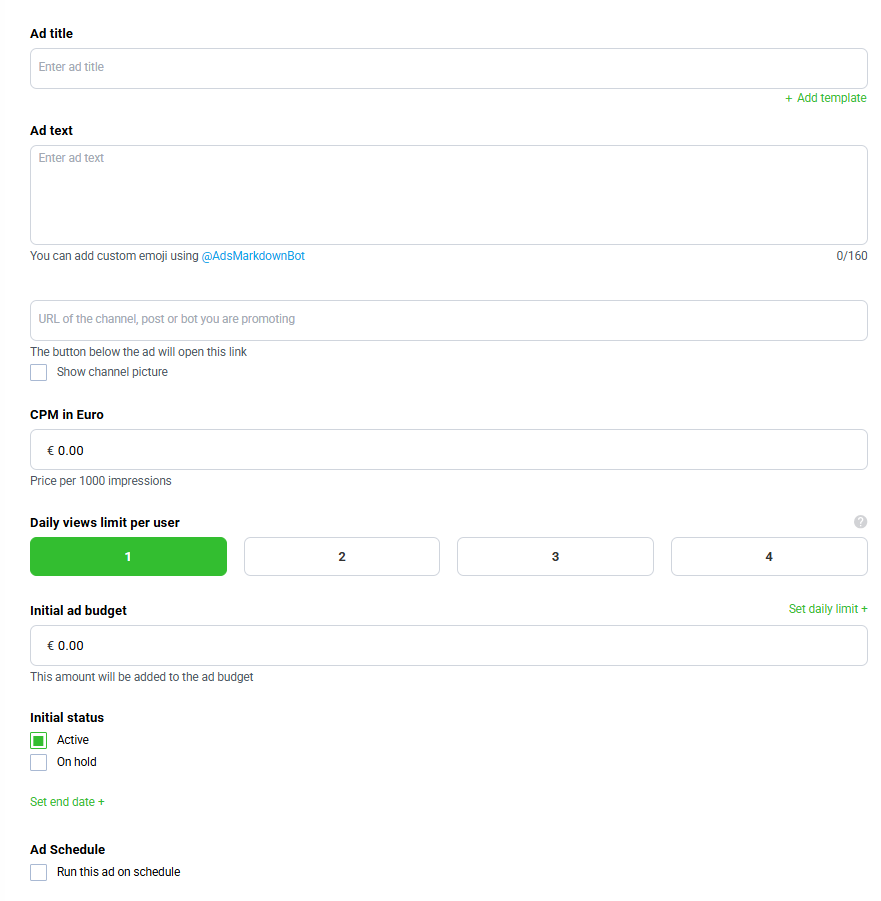
The ad creation form includes:
- Ad name — a custom ad identifier. It is not shown in the ad itself.
- Ad text — the text part of the creative. Used for all targeting types except Search.
- KKTU code — classifier code for product and service categories.
- Channel, bot, or website URL — the promoted object.
- Photo or video — the ad media creative. Used for Users and Channels targeting.
- CPM in EUR — cost per 1000 ad impressions.
- Daily view limit per user — how many times the ad may be shown to one user per day.
- Initial ad budget — the amount allocated from the available budget to this ad. A daily budget limit can be set if needed.
- Ad status — the status the ad will receive after moderation.
Important
The promoted object, ad text, and media are moderated according to Telegram Ads rules.
Targeting Setup
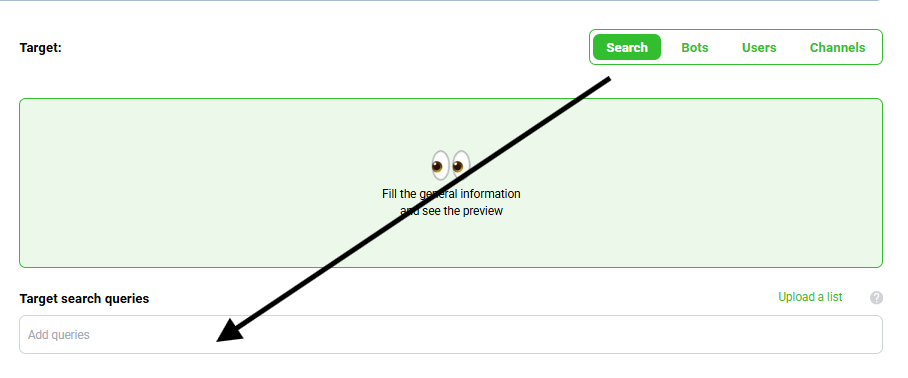
At the targeting step, select the ad display type.

Search
Ads are shown in Telegram search.
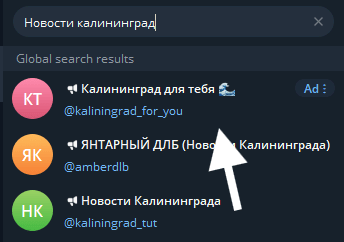
For this targeting type, specify target queries that the system will use when selecting users for ad impressions.
Bots
Ads are shown in Telegram bots.
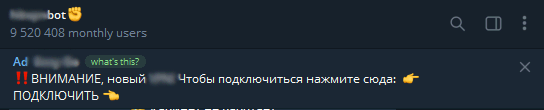
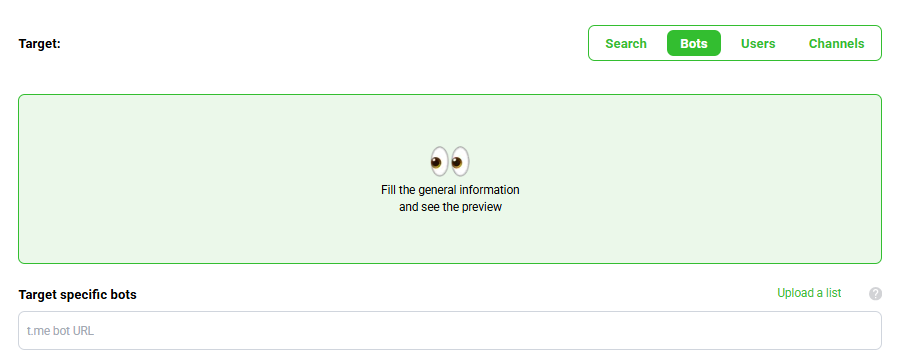
For this targeting type, specify the bots where you plan to place ads.
Users
Ads are shown as Messages in channels or Video banners. This targeting type supports detailed audience settings.
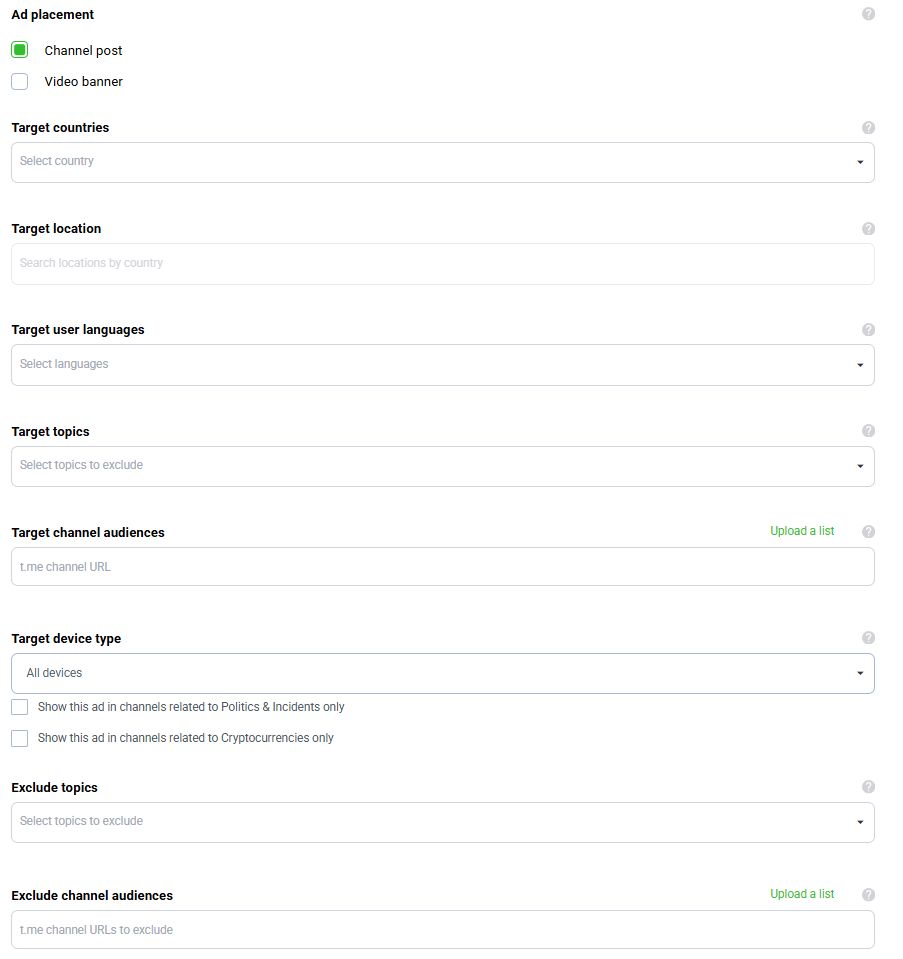
Available settings:
- Target users from selected countries — the country where the ad will be shown.
- Location targeting — a more precise location, such as a city or region.
- User app language targeting — the language of the user's Telegram app.
- Interest targeting — topics used to form the audience for impressions.
- Channel audience targeting — Telegram channels whose audiences should see the ad. Only public Telegram channels are available.
- Device type targeting — devices where the ad will be shown: iOS, Android, smartphones, or desktop.
- Excluded interests — topics whose users should be excluded from impressions.
- Excluded channel audiences — Telegram channel audiences that should be excluded. Only public Telegram channels are available.
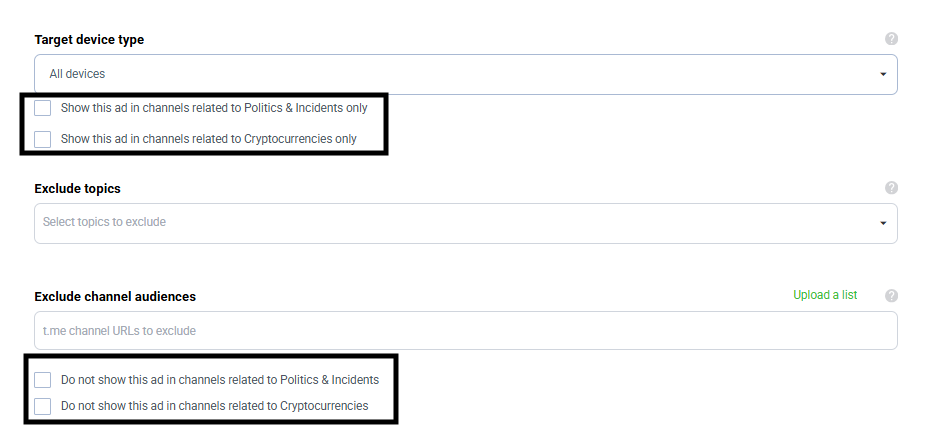
You can also additionally include or exclude channels related to politics or cryptocurrency.
Channels
Ads are shown in public Telegram channels. This targeting type configures the channel selection where ads will be displayed.
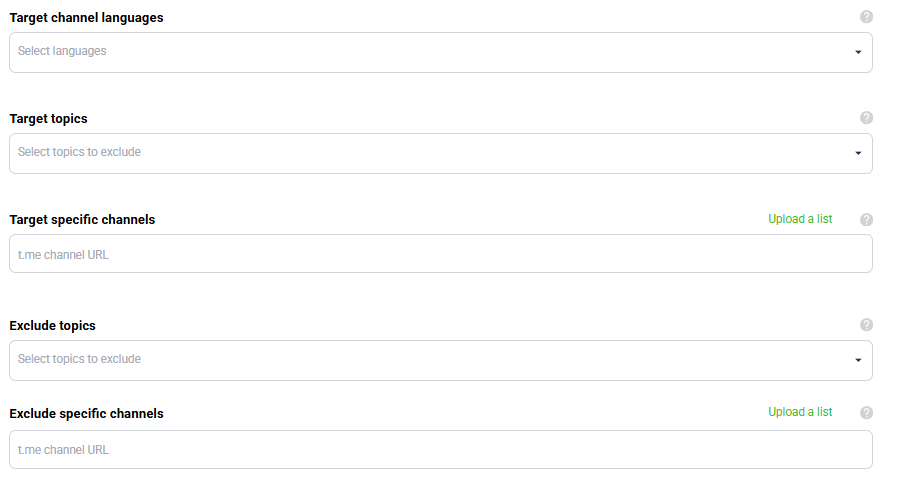
Available settings:
- Channel language for targeting — the language of channels where you plan to place ads.
- Targeting topics — target topics used to select channels.
- Channel targeting — specific Telegram channels where the ad will be shown. Only public Telegram channels are available.
- Excluded topics — topics used to exclude channels from impressions.
- Excluded channels — specific Telegram channels where the ad should not be shown.
Media File Requirements
Media format is available in all Adstat accounts except TON accounts.
Image:
- format: JPEG or PNG
- size: up to 5 MB
- aspect ratio: 16:9
- minimum width: 640 px
Video:
- format: MP4
- size: up to 20 MB
- aspect ratio: 16:9
- minimum width: 640 px
- duration: from 3 to 60 seconds
It is better to compress videos in advance using dedicated software or online services.
Important
During moderation, the promoted object, ad text, and media file are checked separately.
UTM Tags
UTM tags are URL parameters that help identify traffic sources and understand which ad performed better.
Example:
- regular link:
mysite.com - link with a UTM tag:
http://mysite.com/?utm_source=tgads&utm_medium=cpm
In this example:
http://mysite.com/is the website URL being promoted.utm_source=tgadsis the traffic source. It is usually used to mark the platform, such as Telegram Ads, VK, Yandex, and so on.is a dynamic variable. The system automatically substitutes the name of the ad that the user clicked.utm_medium=cpmis the traffic type or acquisition method.is a dynamic variable. The system automatically substitutes the ad number.
How to Create a UTM Tag in Adstat
- Create an ad and fill in the required fields.
- Click Promoted object with parameters.
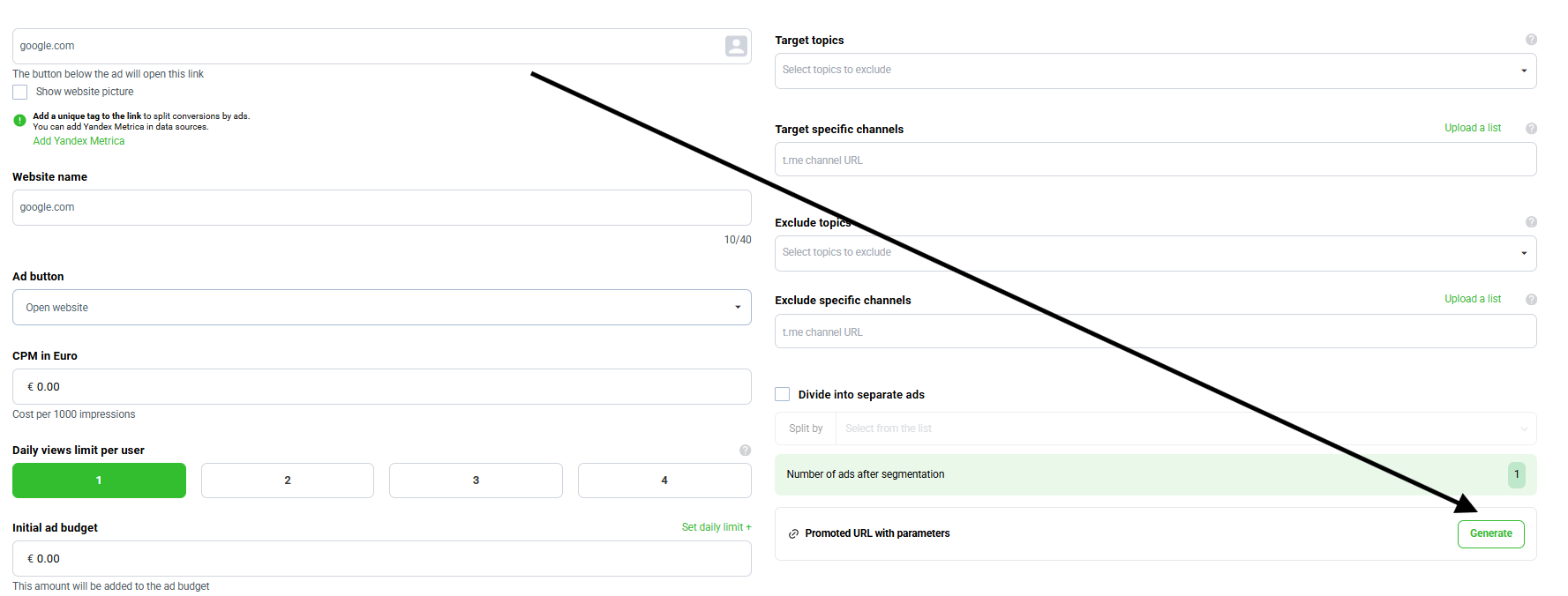
- Click Generate to open the UTM tag setup menu.
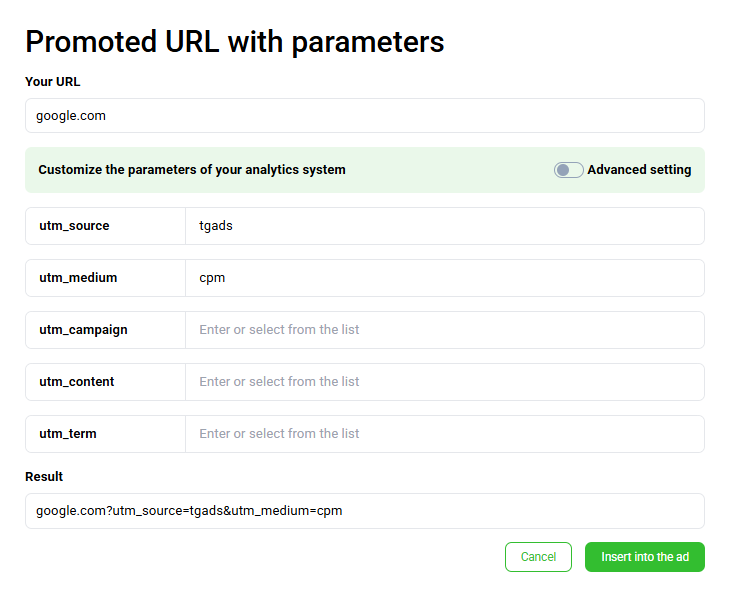
- Select predefined tag keys or add your own.
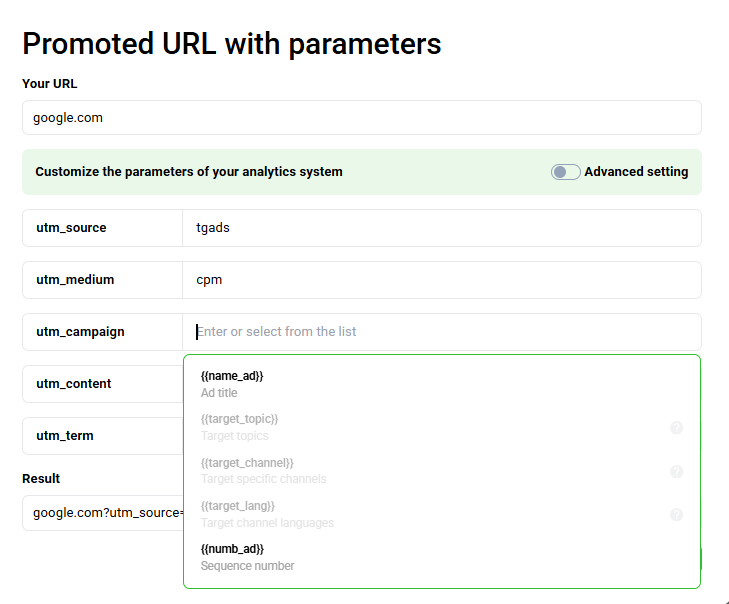
Available Parameters
- utm_source — traffic source.
- utm_medium — traffic or acquisition type.
- utm_campaign — campaign name.
- utm_content — ad content. Used to distinguish creatives, banners, buttons, texts, or ad versions inside one campaign.
- utm_term — keyword or segment. Most often used in search advertising, but it can also be used for an audience, targeting, or another additional marker.
For advanced setup, enable the Advanced setup switch.
After setup, the Result field will show the finished URL with the UTM tag. To insert it into the ad, click Insert into ad.
UTM Tag Example
The example uses an ad with users targeting and splitting by location.
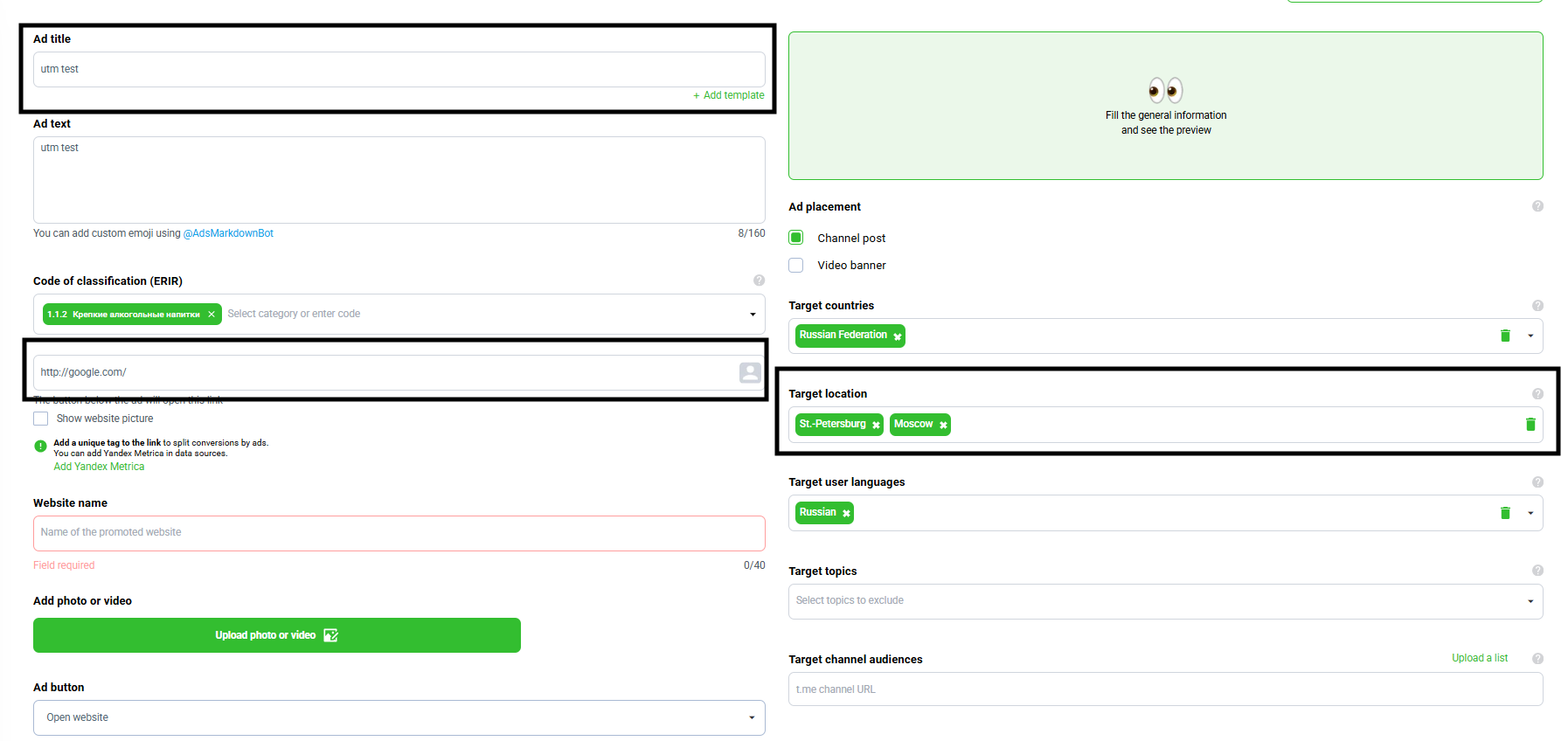
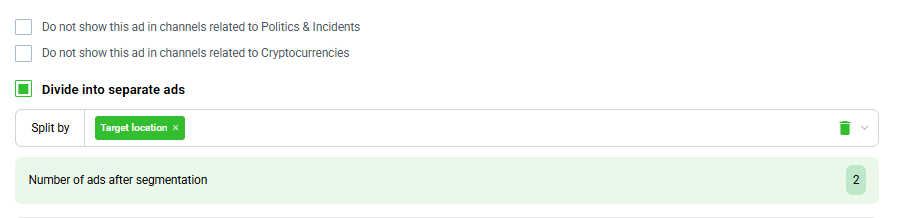
The ad will be split by location.
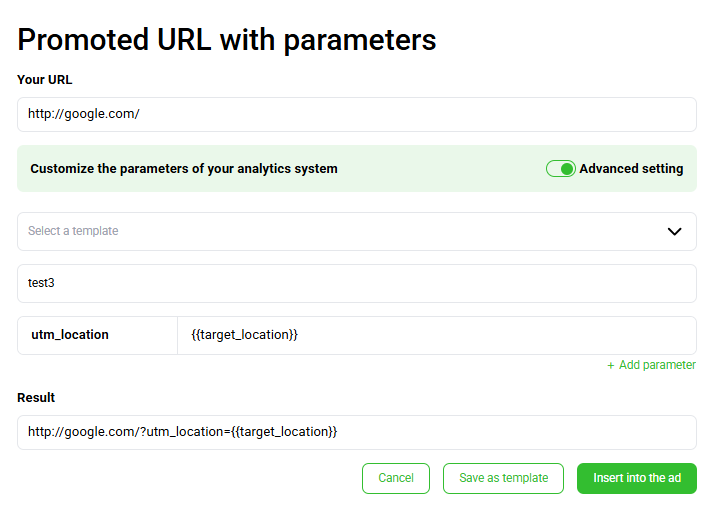
Because the UTM tags are based on location targeting, select Advanced setup, enter the analytics system name, and configure the parameters.
In the example:
- analytics system name:
test3 - UTM parameter name:
utm_location - value:
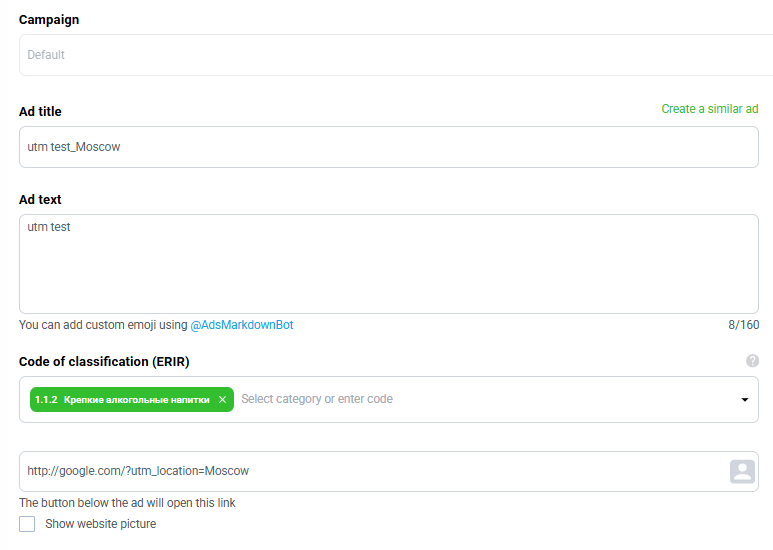
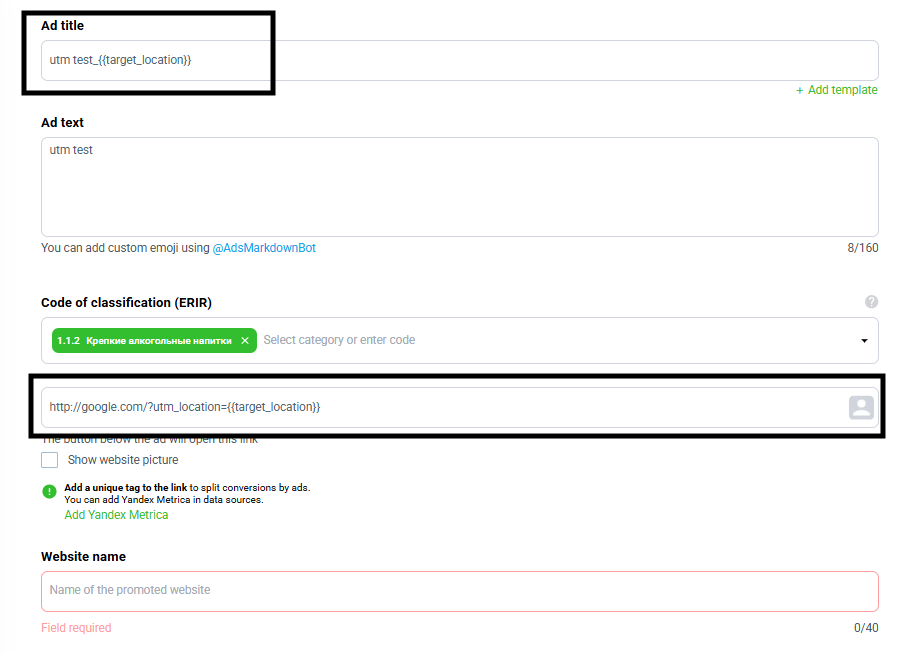
After clicking Insert into ad, the Ad name and Object fields change.
After completing setup and clicking Create ad, ads will be created according to the splitting settings.
Each ad name will include the splitting parameters, and the Object field will contain a URL with a UTM tag generated from those parameters.
In this example, 3 ads are created, one for each selected location.

The location is included in the ad name and in the object's UTM tag.