

Invite Links
Invite links help you understand how many subscribers came from each ad and how valuable that traffic was.
With invite links, you can:
- view subscriptions and unsubscribes by ad
- calculate CPS and CPS adjusted for unsubscribes
- compare the performance of different ads
- export the subscriber list for further analysis
How It Works
When creating an ad, specify the Telegram channel and enable invite link creation.
After the ad is created, Adstat automatically creates a separate link for it. When a user subscribes to the channel through that link, the data appears in statistics.
If you use ad splitting, each ad will also have its own link.
Important
Adstat collects data only for links created inside the service. If you create a link manually in Telegram or through another service, its data will not appear in Adstat statistics.
How to Create an Invite Link
1. Add the Bot as a Channel Administrator
To let Adstat create the link and collect data, add the @adstat_invite_bot bot as an administrator of the promoted Telegram channel.
To do this:
- Open the
@adstat_invite_botbot profile. - Click Add to Group or Channel.
- Select the channel you are going to promote.
- Add the bot as an administrator.
The bot is used only for technical work with links. It does not publish or change content, interact with subscribers, or manage the channel.
Important
Do not remove the bot from administrators. Without it, Adstat will not be able to collect data.
2. Enable Link Creation in the Ad
Go to ad creation and specify the Telegram channel in the Promoted object field.
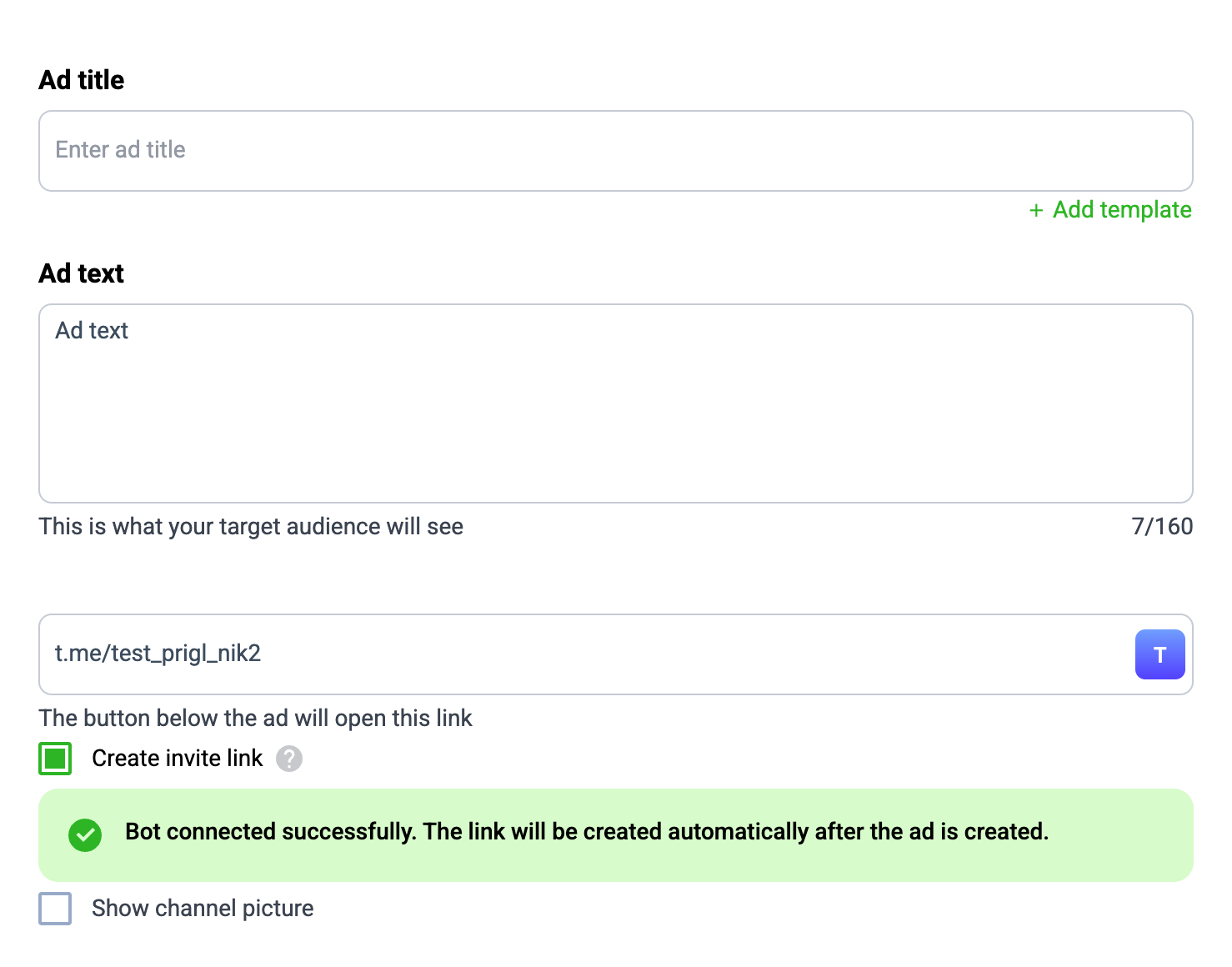
After that, the Create invite link option will appear. Enable it.
3. Check the Connection
After you enable the option, Adstat will show connection instructions.
If the bot has already been added as a channel administrator, click Check connection.
If everything is configured correctly, a successful connection message will appear. It will disappear automatically after a few seconds.
Important
At this step, Adstat only checks access to the channel. The link itself is created after the ad is created.
If the Connection Check Fails
If Adstat cannot check the connection, you will see an error message.
Check that:
- the
@adstat_invite_botbot has been added as an administrator of the correct channel - the same channel is specified in the Promoted object field
- you have access to the channel
- the bot has not been removed from administrators
After that, click Check connection again.
How to View Statistics
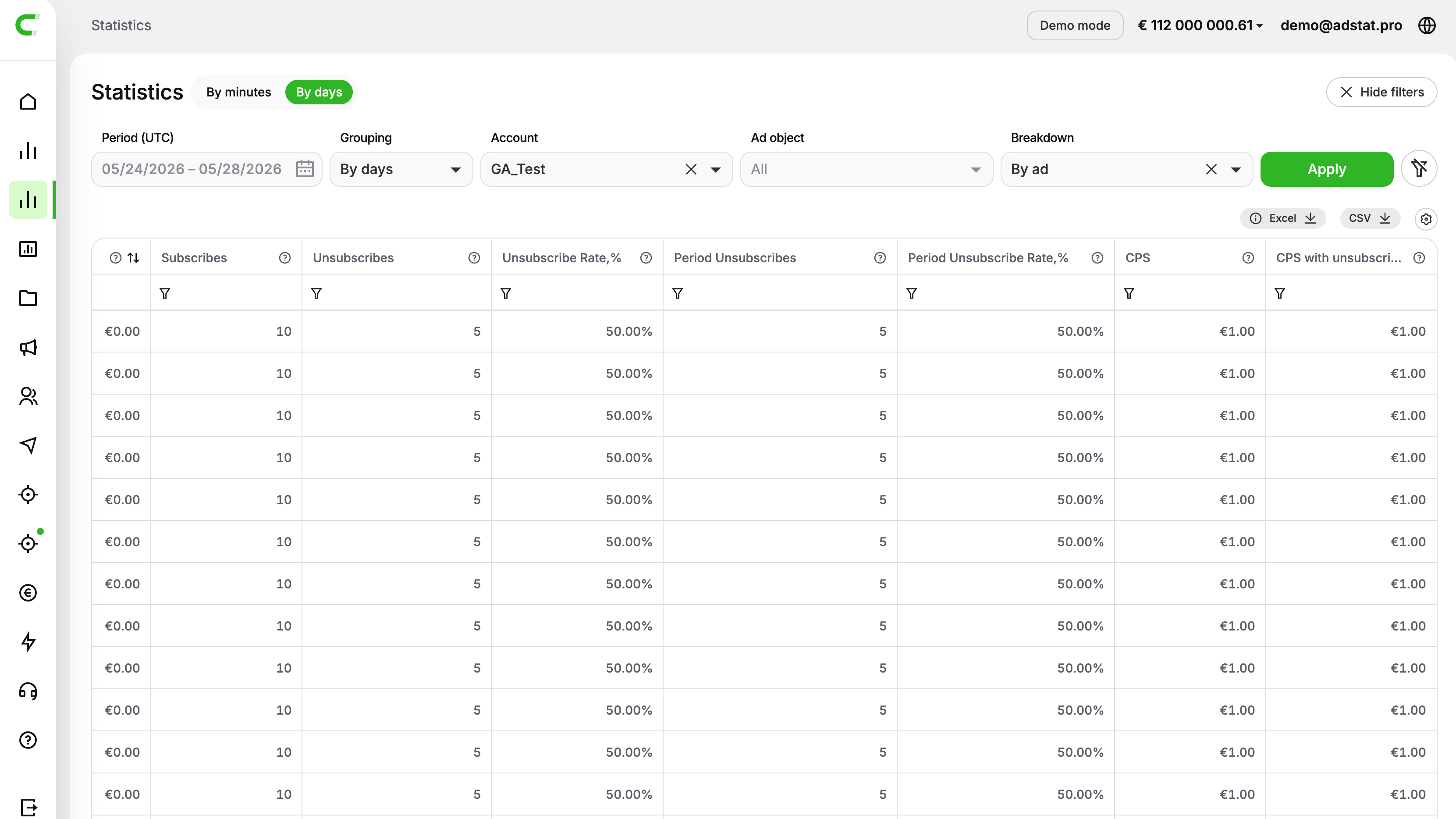
Invite link data is available in the Statistics section.
To see the required columns:
- Select Period (UTC).
- In the Breakdown field, select By ads.
Invite link statistics are shown only with the By ads breakdown. If you select another breakdown, these data columns will not appear in the table.
Available Data
| Column | Meaning |
|---|---|
| Subscriptions | Number of subscriptions through the link during the selected period. |
| Unsubscribes | Number of unsubscribes through the link. |
| Unsubscribe % | Share of unsubscribes from subscriptions. Formula: Unsubscribes / Subscriptions. |
| Unsubscribes for period | Number of unsubscribes among users who subscribed through the link during the selected period. |
| Unsubscribe % for period | Share of unsubscribes among users who subscribed through the link during the selected period. Formula: Unsubscribes for period / Subscriptions. |
| CPS | Cost per subscription. Formula: Spend / Subscriptions. |
| CPS adjusted for unsubscribes | Cost per subscription adjusted for unsubscribes. Formula: Spend / (Subscriptions - Unsubscribes for period). |
Important
The table displays data only for links created through Adstat.
How to Export the Subscriber List
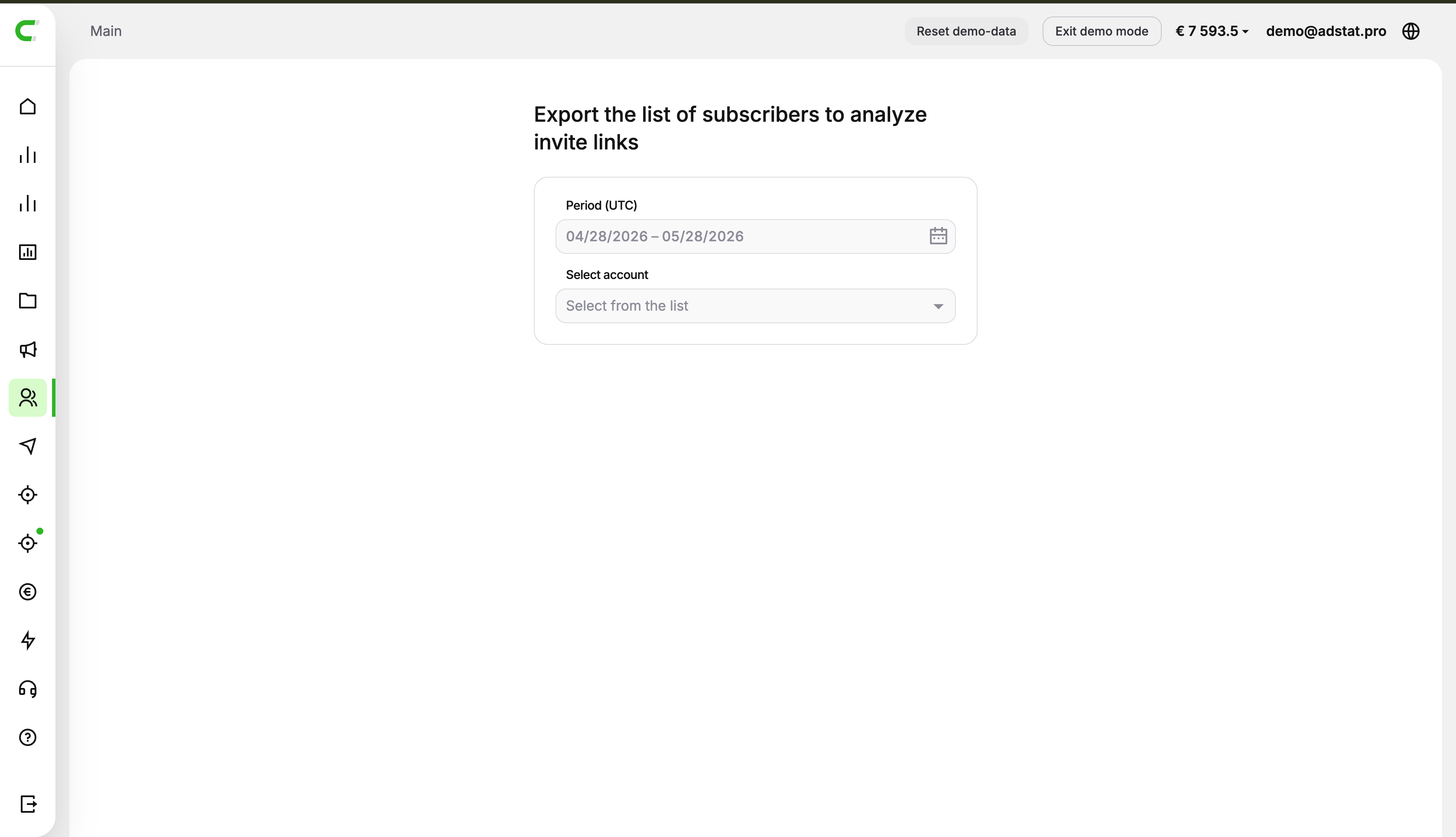
You can download the subscriber list in the Link analytics section.
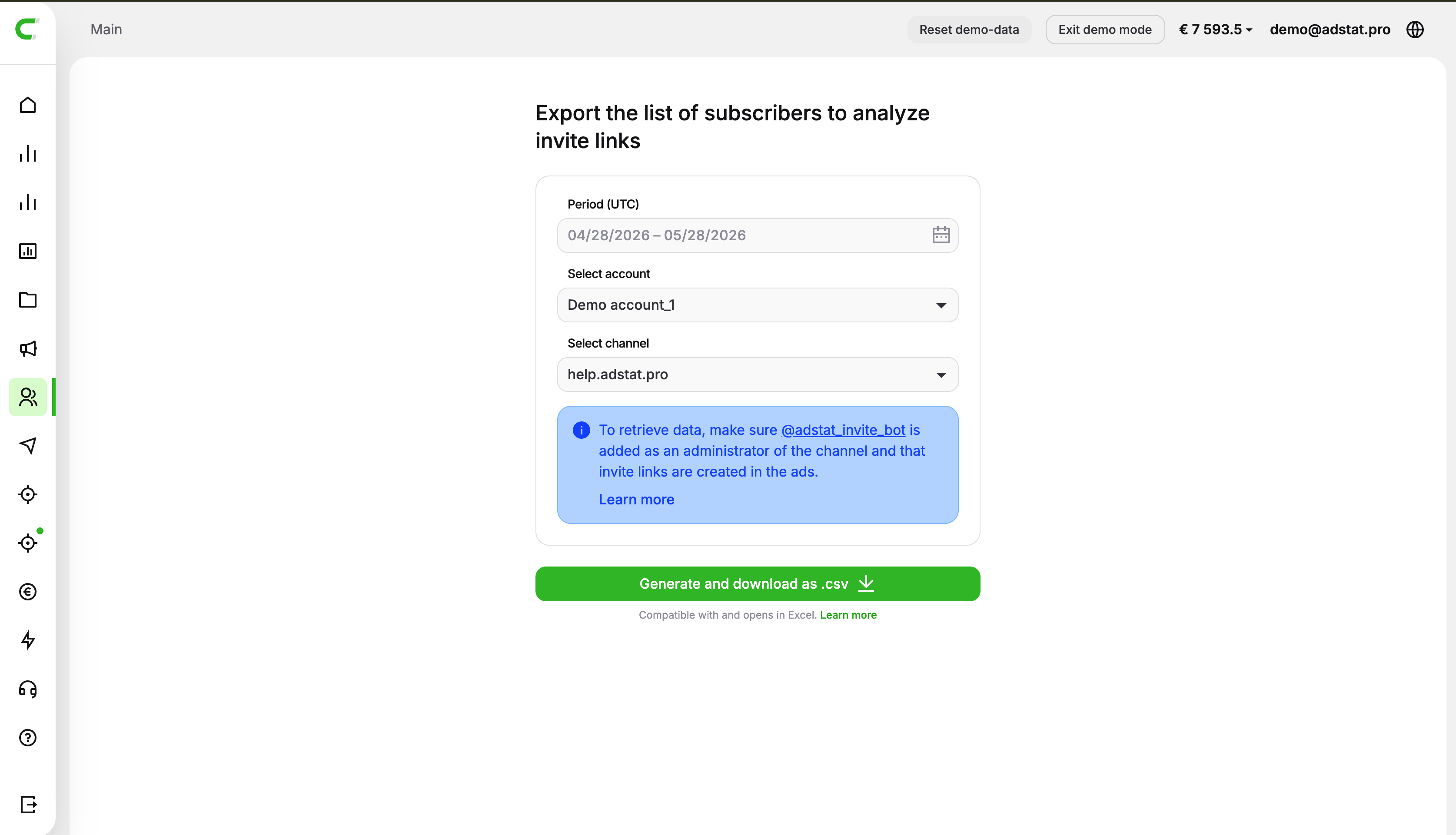
This section does not contain a ready-made table. You select report parameters, and Adstat generates a CSV file.
To generate a report:
Open the Link analytics section.
Select Period (UTC).
The period must not exceed 3 months.
Select an account.
Select the promoted channel.
Click Generate and download as .csv.
When the Report Contains Data
The report will contain data if:
- the
@adstat_invite_botbot has been added as an administrator of the promoted channel - ads contain links created through Adstat
If one of these conditions is not met, the report may download as empty.
How to Open a CSV File
The report is downloaded in .csv format. You can open it in Excel or another spreadsheet editor.
If the data opens in one row, import the file through Excel and select the separator manually.
The following settings usually work:
- encoding: UTF-8
- separator: semicolon
If letters are displayed as unreadable characters, open the file through data import and select UTF-8 encoding.