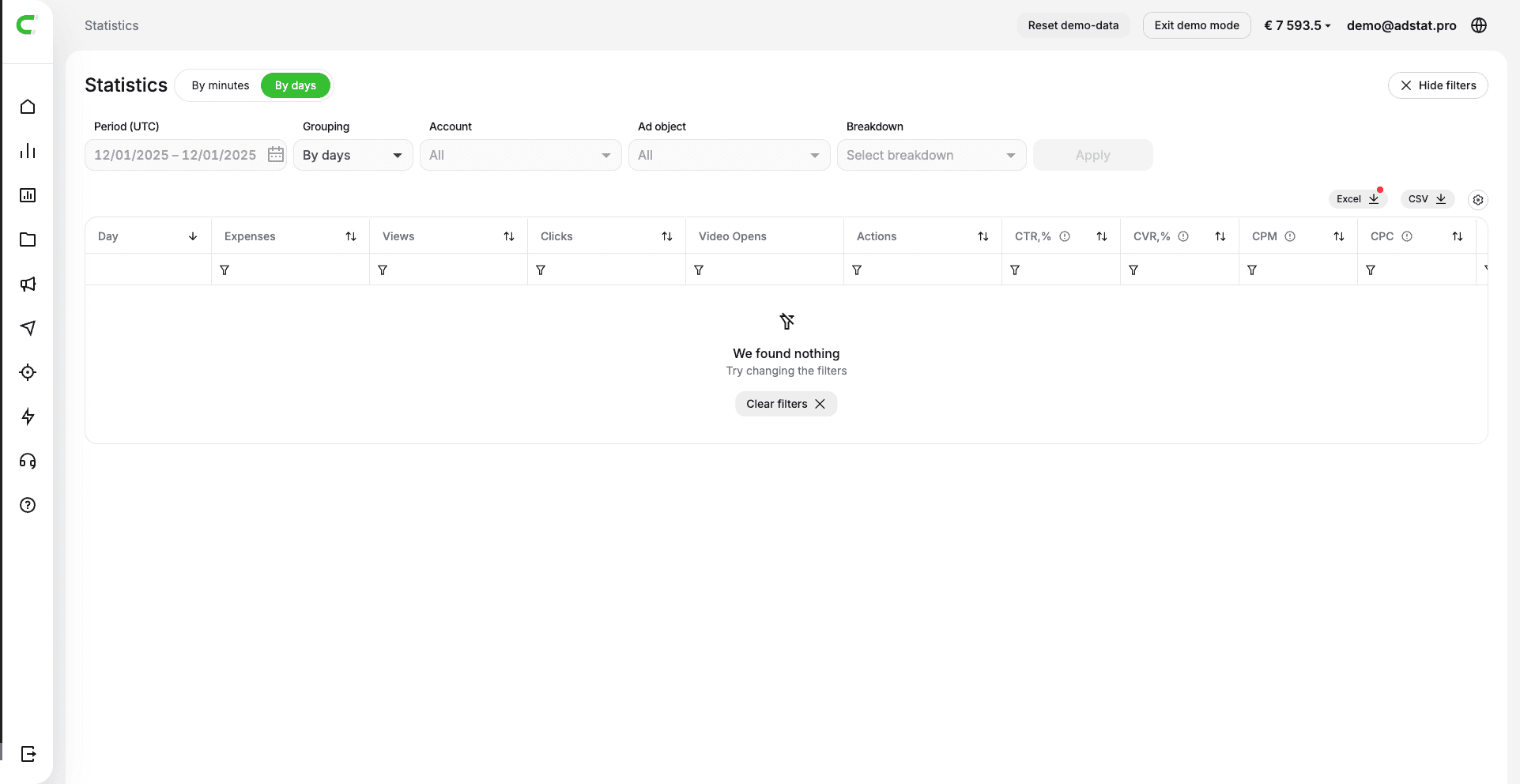
Statistics Guide — Adstat.pro
This feature allows you to flexibly view statistics by selected parameters: accounts, campaigns, advertising objects, periods, and metrics.
Statistics can be displayed both by days and by 5-minute intervals — in all cases, data is calculated and displayed in the UTC timezone.
Filters
Selecting Statistics Type
First, select the detail level for viewing statistics:
- by minutes
- by days
Minute-by-minute statistics is available for the last 5 days, but the maximum selectable period is 2 days.
This means that for subsequent analysis, you can save the data by downloading it to your device in Excel or CSV formats to return to this data later.
Period Selection
In the "Period" block, select the time range for which you want to get statistics.
For minute-by-minute statistics, the following options are available:
- Last hour
- Last 2 hours
- Today
- Yesterday
- Last 2 days
Using the calendar, you can specify the dates of interest. Minute-by-minute statistics is available for the last 5 days, but the maximum selectable period is 2 days.
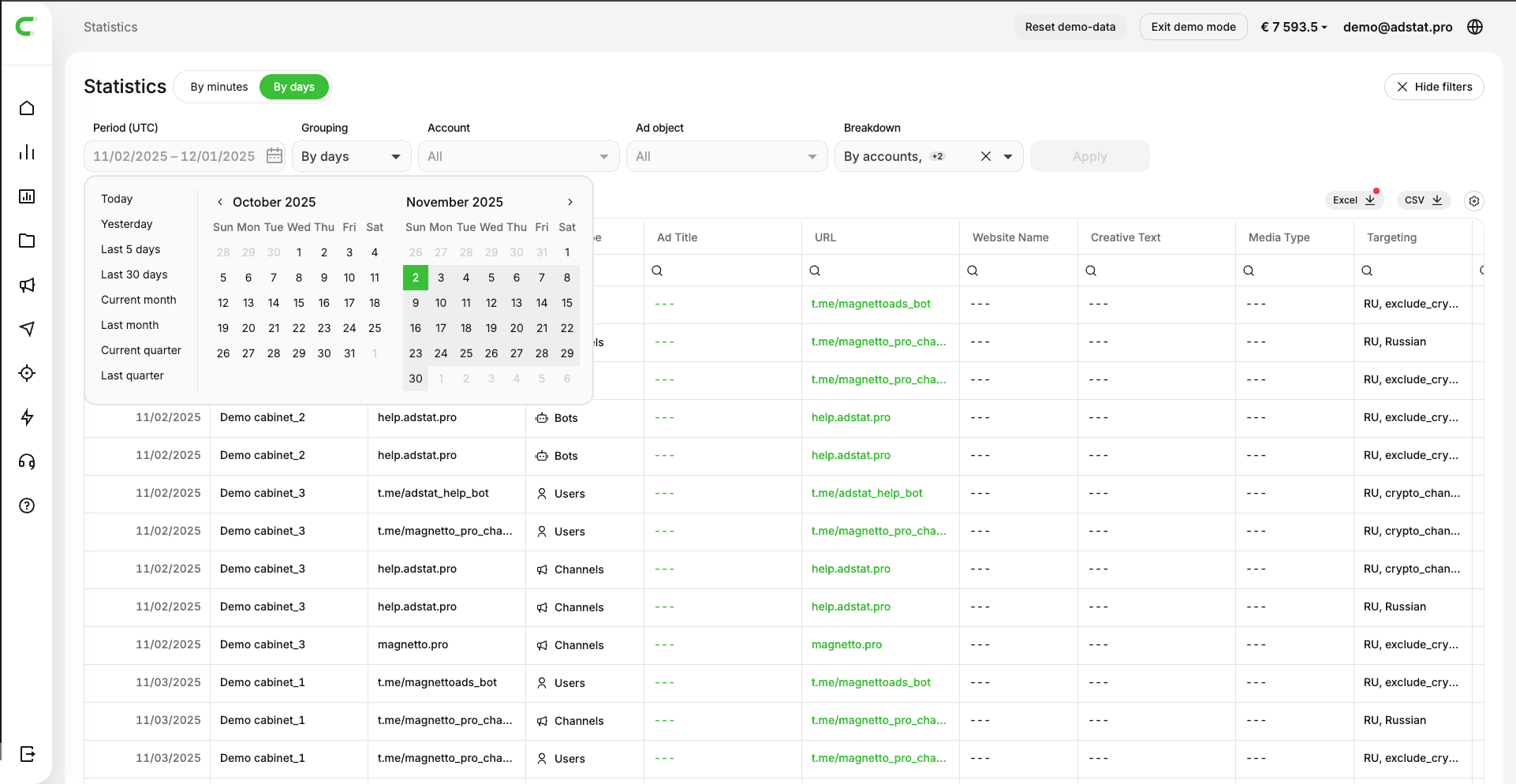
For daily statistics, the following options are available:
- Today
- Yesterday
- Last 5 days
- Last 30 days
- Current month
- Previous month
- Current quarter
- Previous quarter
Using the calendar, you can specify the dates of interest, starting from 01.01.2022.
Without selecting a period, the statistics request will not be sent.
Grouping Selection
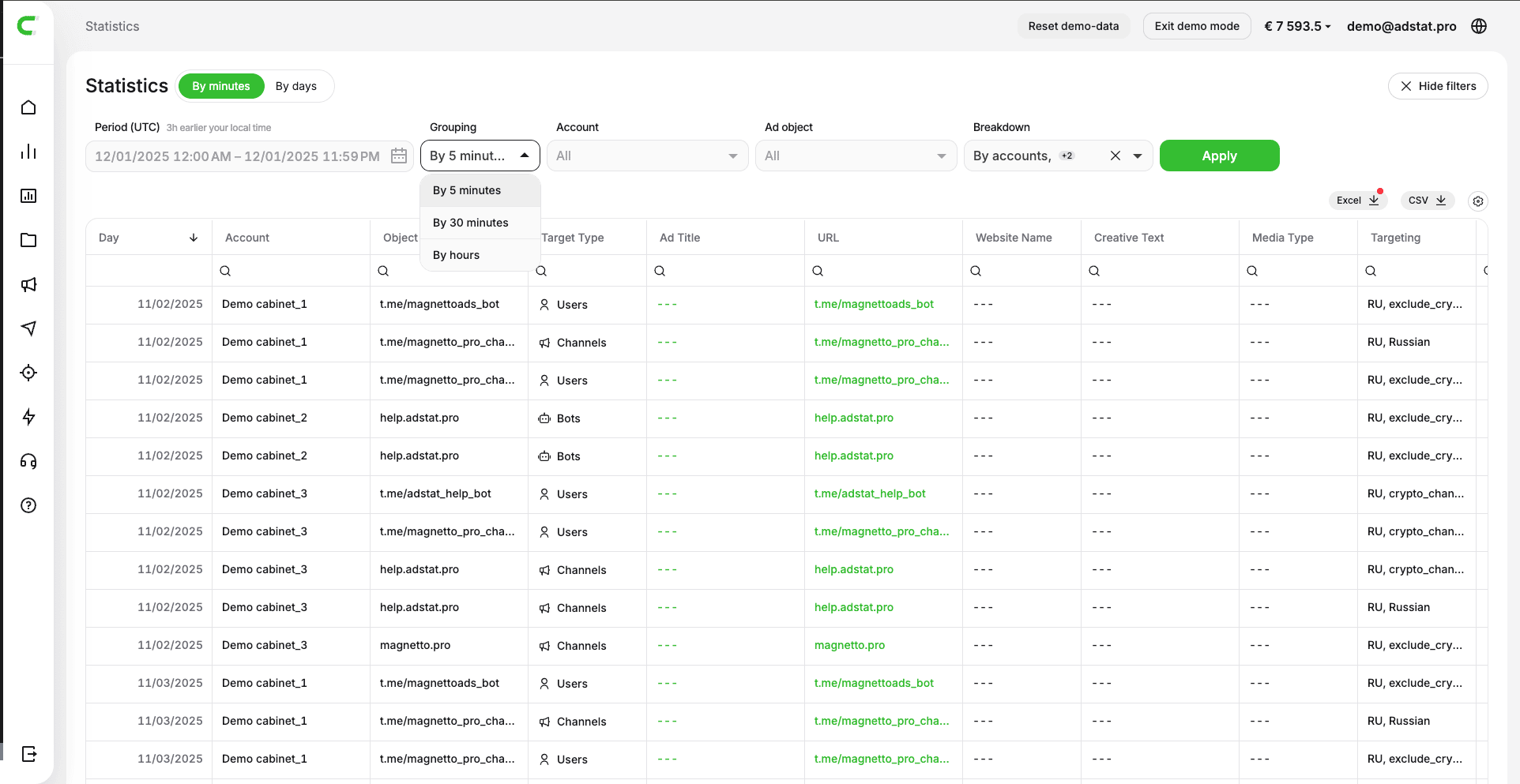
Select the required data granularity using the "Grouping" filter.
For minute-by-minute statistics:
- By 5 minutes (default)
- By 30 minutes
- By hours
For daily statistics:
- By days (default)
- By weeks
- By months
- By years
Breakdown Selection
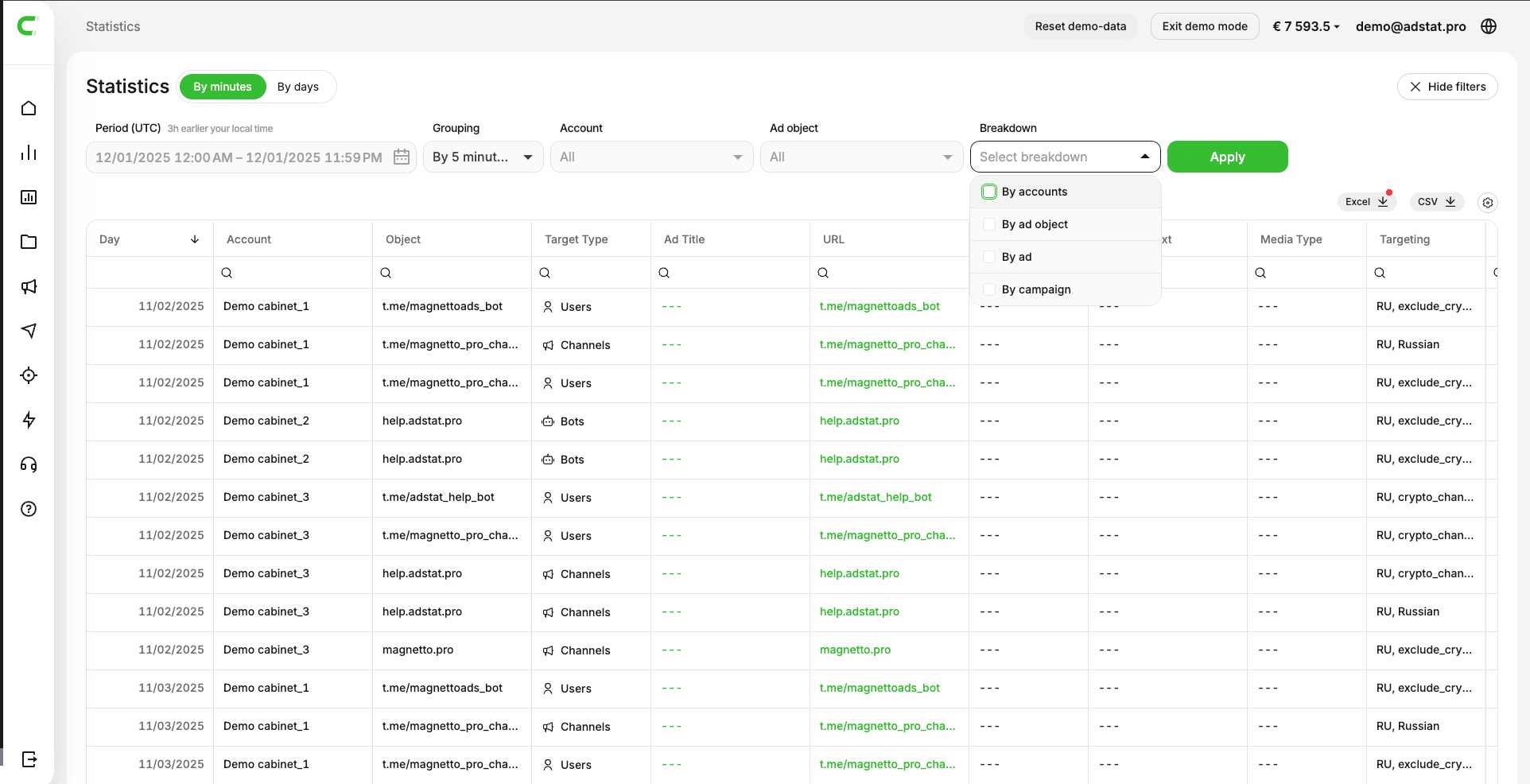
In the "Breakdown by" block, specify the structure in which you want to receive data.
Available options:
- By campaigns
- By accounts
- By advertising objects
- By ads
Multiple selection is supported. The "By campaigns" and "By accounts" options cannot be selected simultaneously.
Account and Object Filters
To refine the data export, you can use filters:
- Accounts — if nothing is selected, all accounts available in your adstat.pro account will be exported.
- Advertising object — if nothing is selected, all objects advertised within the available Telegram Ads accounts will be exported.
- If accounts are selected in the "Accounts" filter, then only objects from the selected accounts will be available in "Advertising objects".
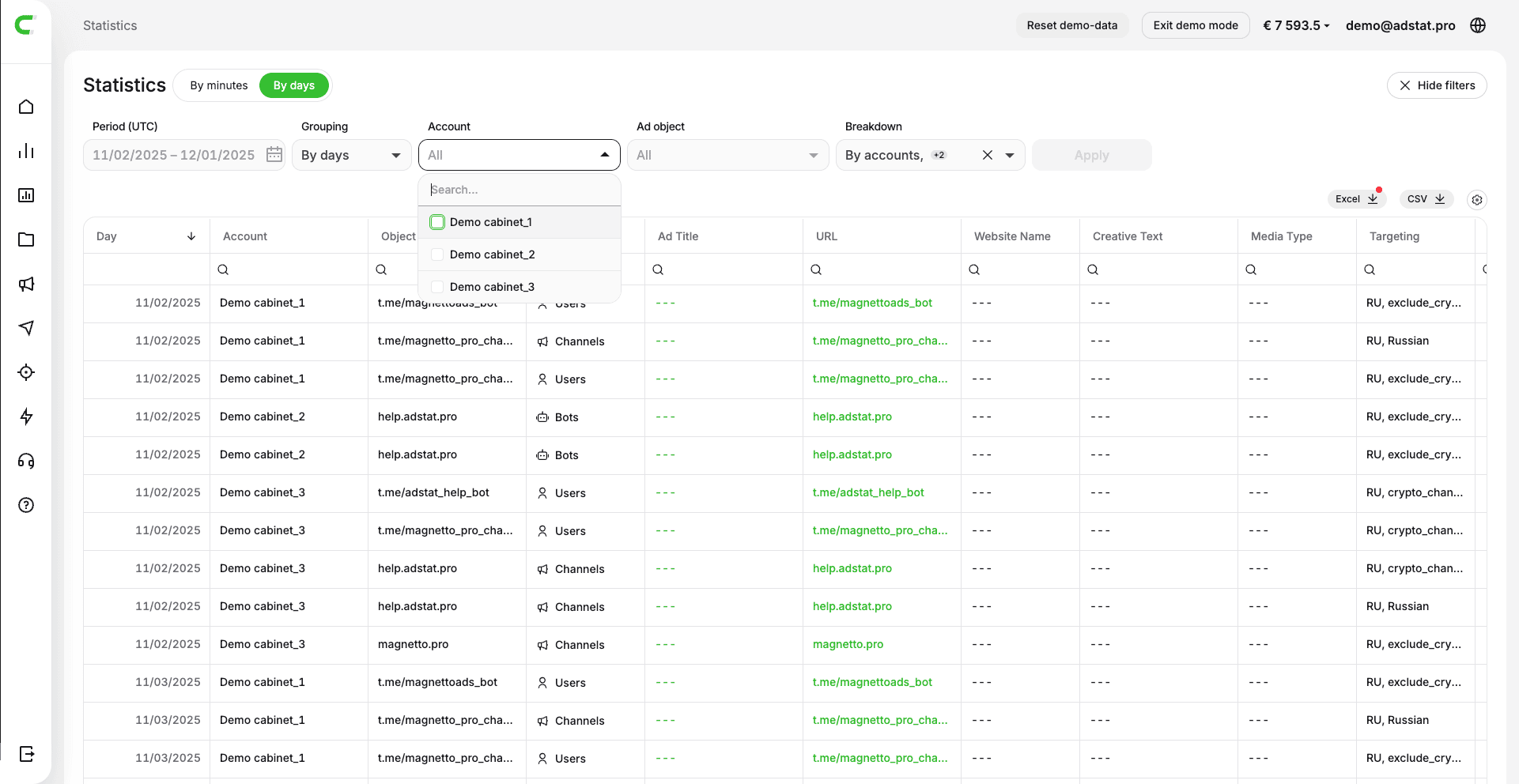
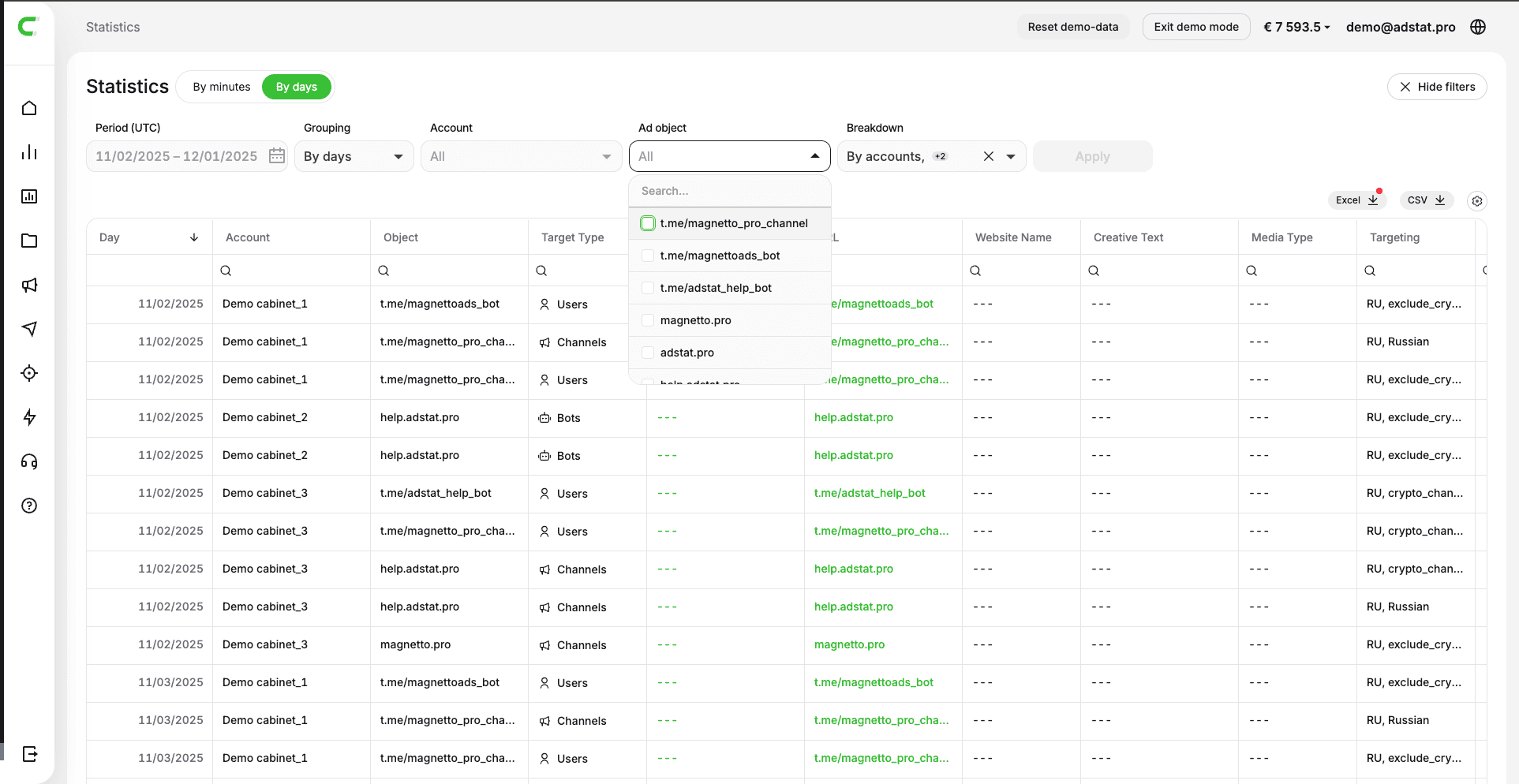
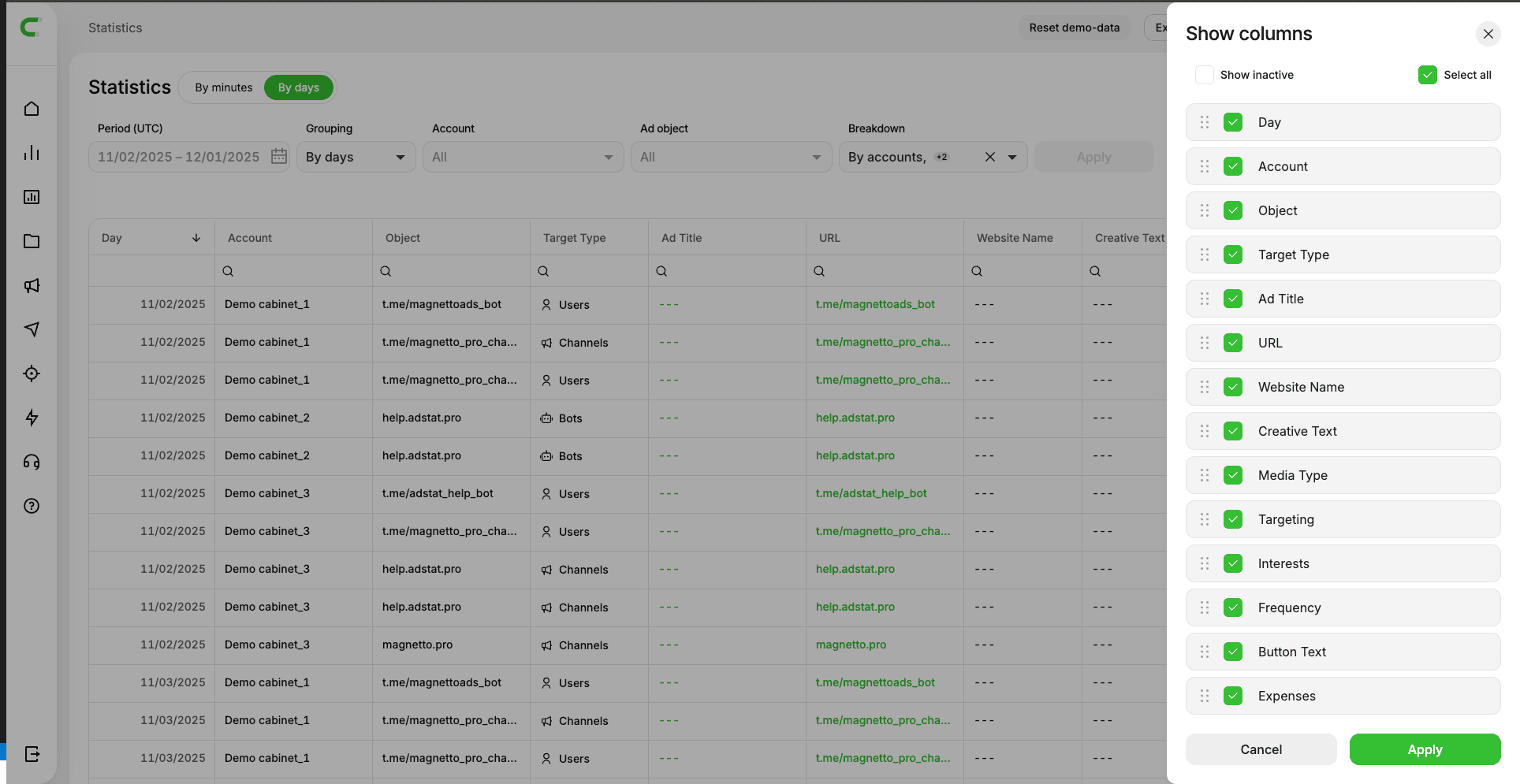
Table Settings
Available Data and Metrics
- Grouping — the selected data granularity in the "Grouping" filter
- Spend — total advertising spend
- Impressions — number of ad creative impressions
- Clicks — number of clicks on the ad creative
- Video opens — number of video opens
- Actions — number of completed target actions
- CTR% — click-through rate (Clicks / Impressions × 100)
- CVR% — conversion rate (Actions / Clicks × 100)
- CPM — cost per 1000 impressions
- CTC — cost per click (Spend / Clicks)
- CTA — cost per action (Spend / Actions)
- Targeting by — targeting type
- Account — Telegram Ads account name
- Campaign — advertising campaign name
- Ad name — ad name
- Advertising object — the object you are advertising
- URL — link for tracking transitions
- Website name — name of the advertised website
- Creative text — ad text
- Media type — video or image
- Targeting — selected ad targeting
- Interests — list of selected interests
- Impression frequency — how many times the ad was shown to one user
- Button text — CTA button text
- Action type — type of tracked action
Only metrics selected through the gear icon are displayed.
To change the column display order — drag them to the desired order.
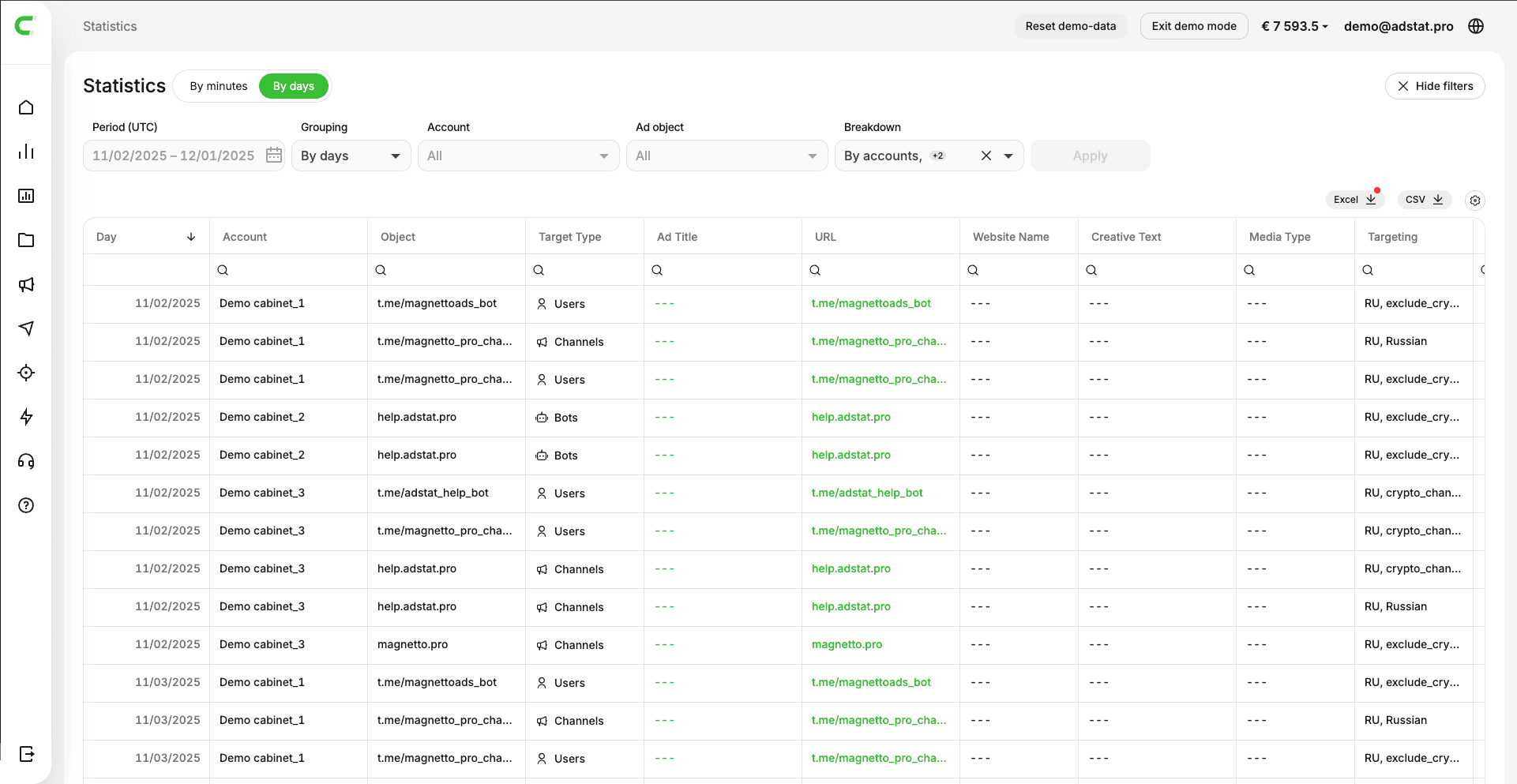
You can also download statistics in Excel or CSV format.
Use Cases
- Overall performance — no breakdown, any period, data and metrics as selected
- Campaign comparison within one account — "Campaigns" breakdown, one account selected
(the "Accounts" column is always displayed when breaking down by campaigns) - Analysis of advertising objects within one account — "By advertising objects" breakdown
Generating Report
Click "Show statistics".
Available actions:
- column sorting
- row copying
- saving selected settings
- downloading statistics in Excel and CSV formats
Important Notes
- Without breakdown, overall statistics is displayed
- Without a selected account, statistics is displayed for all accounts
- Period is required
- All data is displayed in UTC timezone