📊 Statistics Guide — Adstat.pro
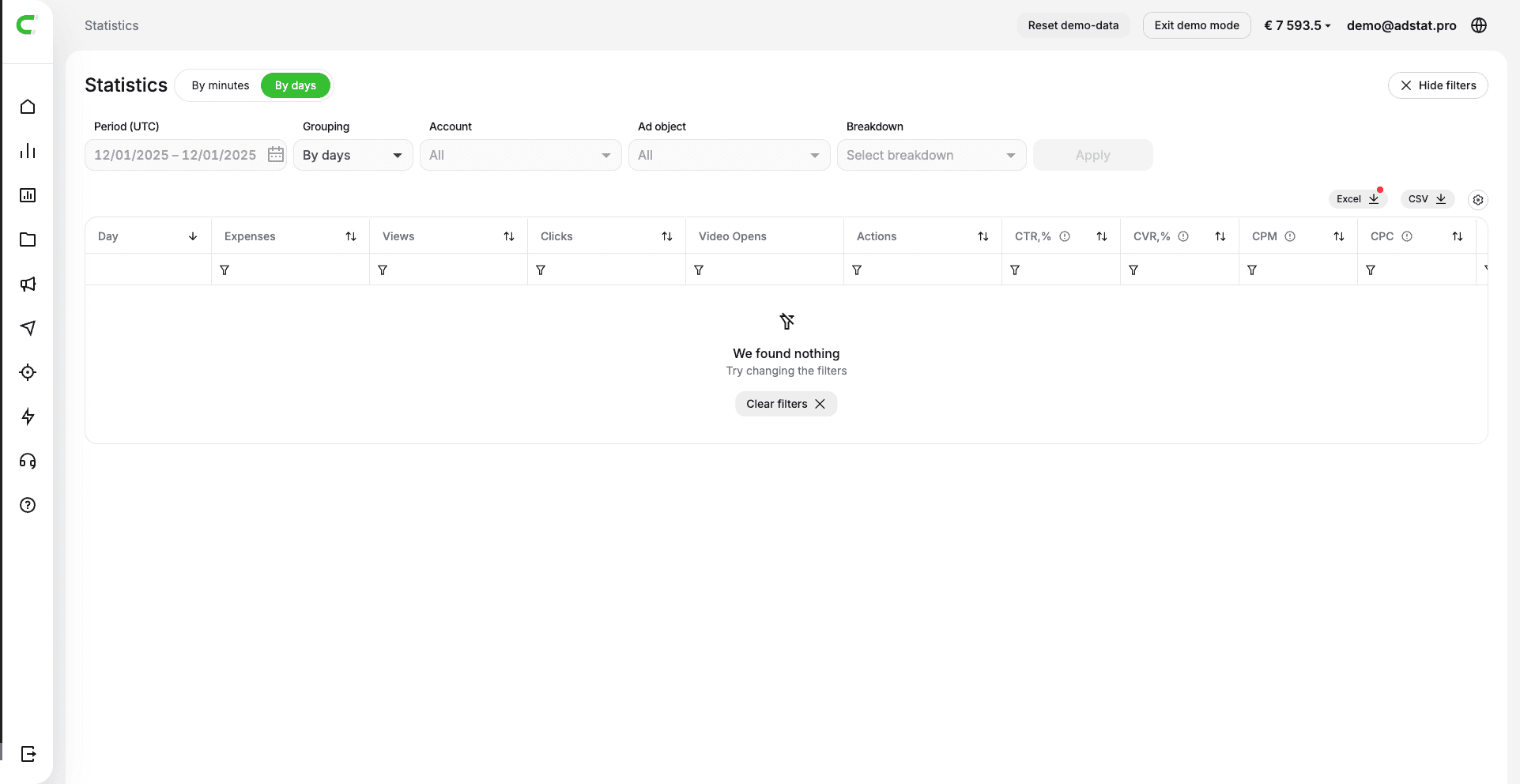
This feature allows you to flexibly view statistics by selected parameters: accounts, campaigns, advertising objects, periods, and metrics.
Statistics can be displayed both by days and by 5-minute intervals — in all cases, data is calculated and displayed in the UTC timezone.
🔹 Filters
▶️ Selecting Statistics Type
First, select the detail level for viewing statistics:
- by minutes
- by days
:::warning⚠️ Minute-by-minute statistics is available for the last 5 days, but the maximum selectable period is 2 days. :::
This means that for subsequent analysis, you can save the data by downloading it to your device in Excel or CSV formats to return to this data later.
▶️ Period Selection
In the "Period" block, select the time range for which you want to get statistics.
For minute-by-minute statistics, the following options are available:
- Last hour
- Last 2 hours
- Today
- Yesterday
- Last 2 days
Using the calendar, you can specify the dates of interest. Minute-by-minute statistics is available for the last 5 days, but the maximum selectable period is 2 days.
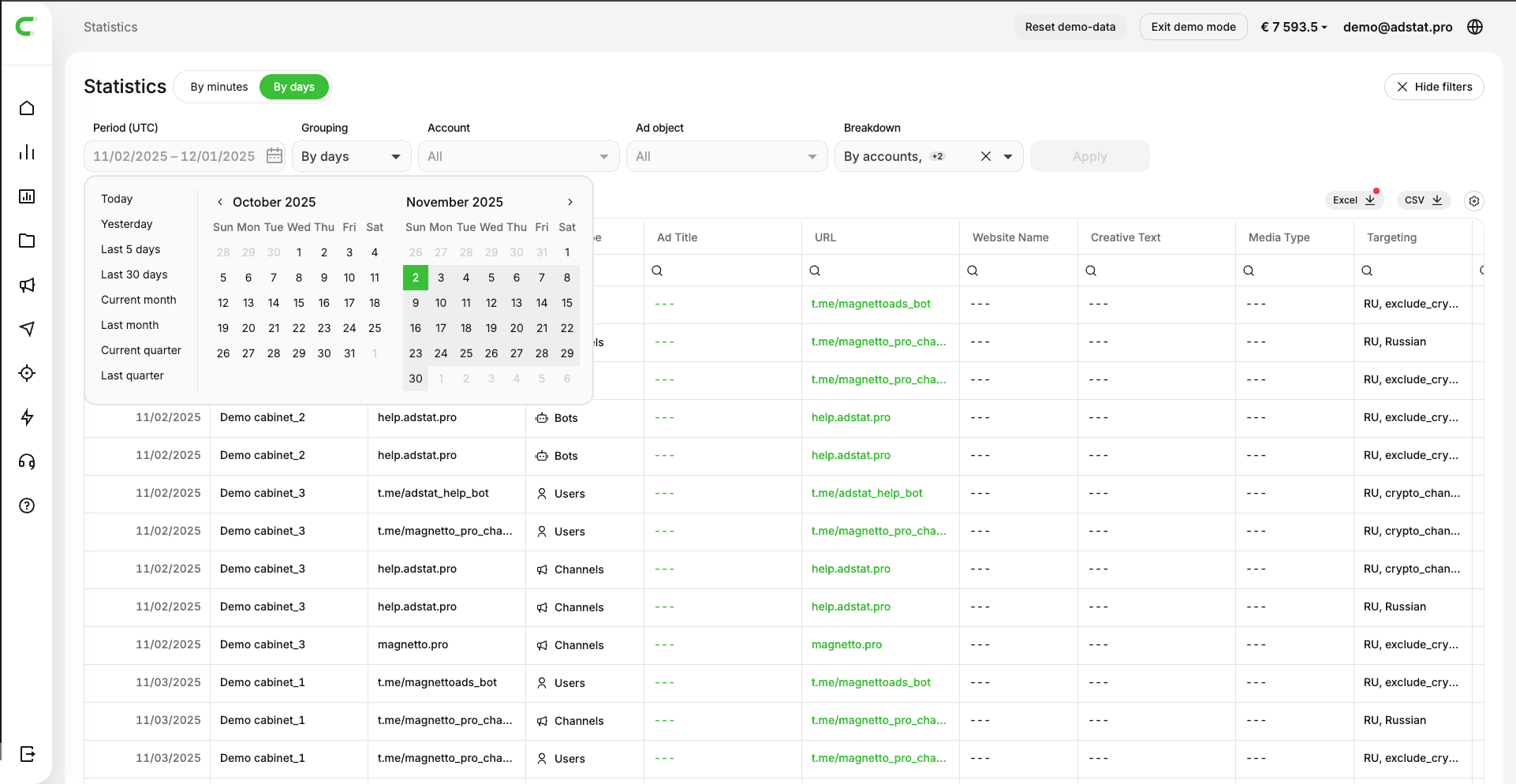
For daily statistics, the following options are available:
- Today
- Yesterday
- Last 5 days
- Last 30 days
- Current month
- Previous month
- Current quarter
- Previous quarter
Using the calendar, you can specify the dates of interest, starting from 01.01.2022.
⚠️ Without selecting a period, the statistics request will not be sent.
▶️ Grouping Selection
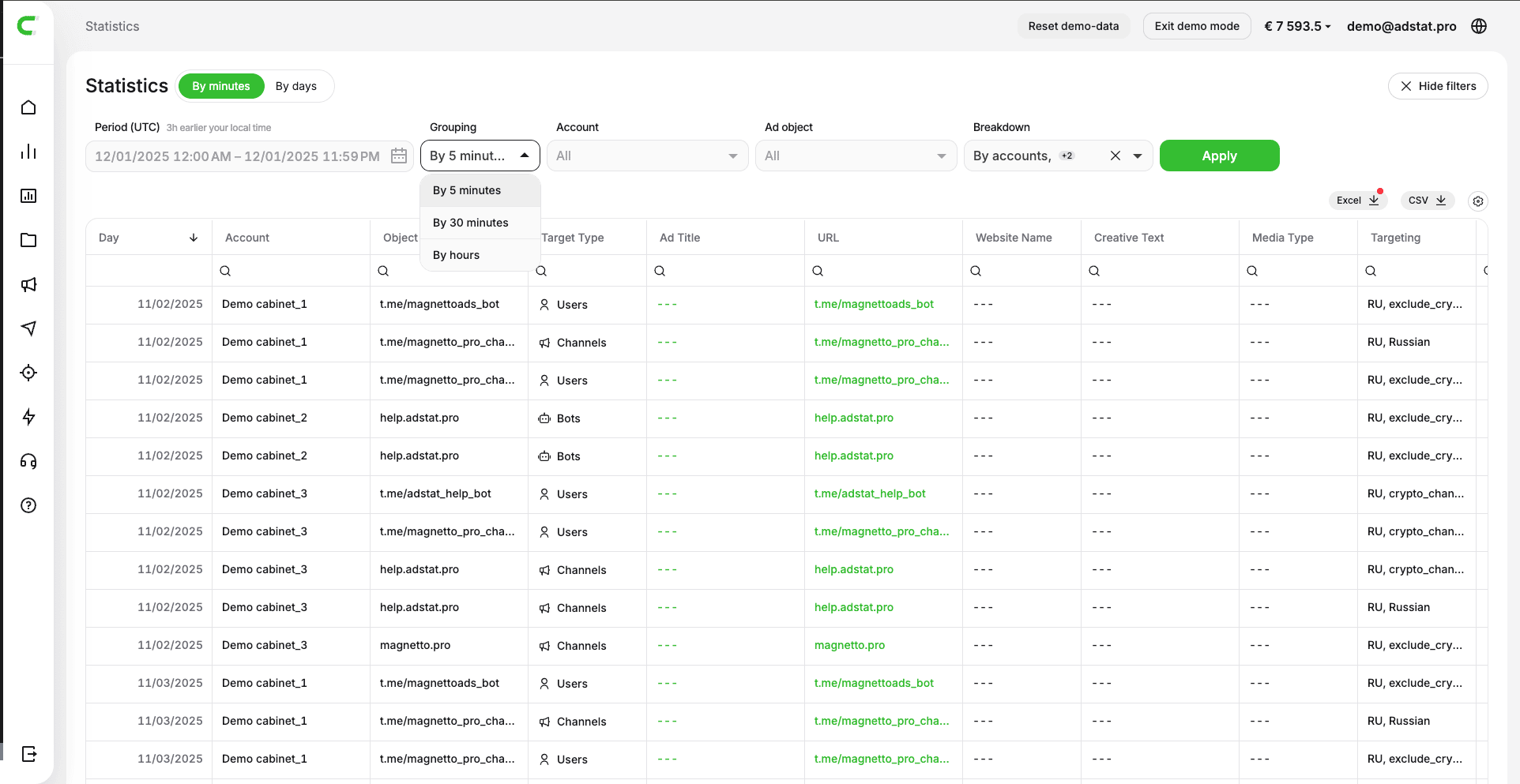
Select the required data granularity using the "Grouping" filter.
For minute-by-minute statistics:
- By 5 minutes (default)
- By 30 minutes
- By hours
For daily statistics:
- By days (default)
- By weeks
- By months
- By years
▶️ Breakdown Selection
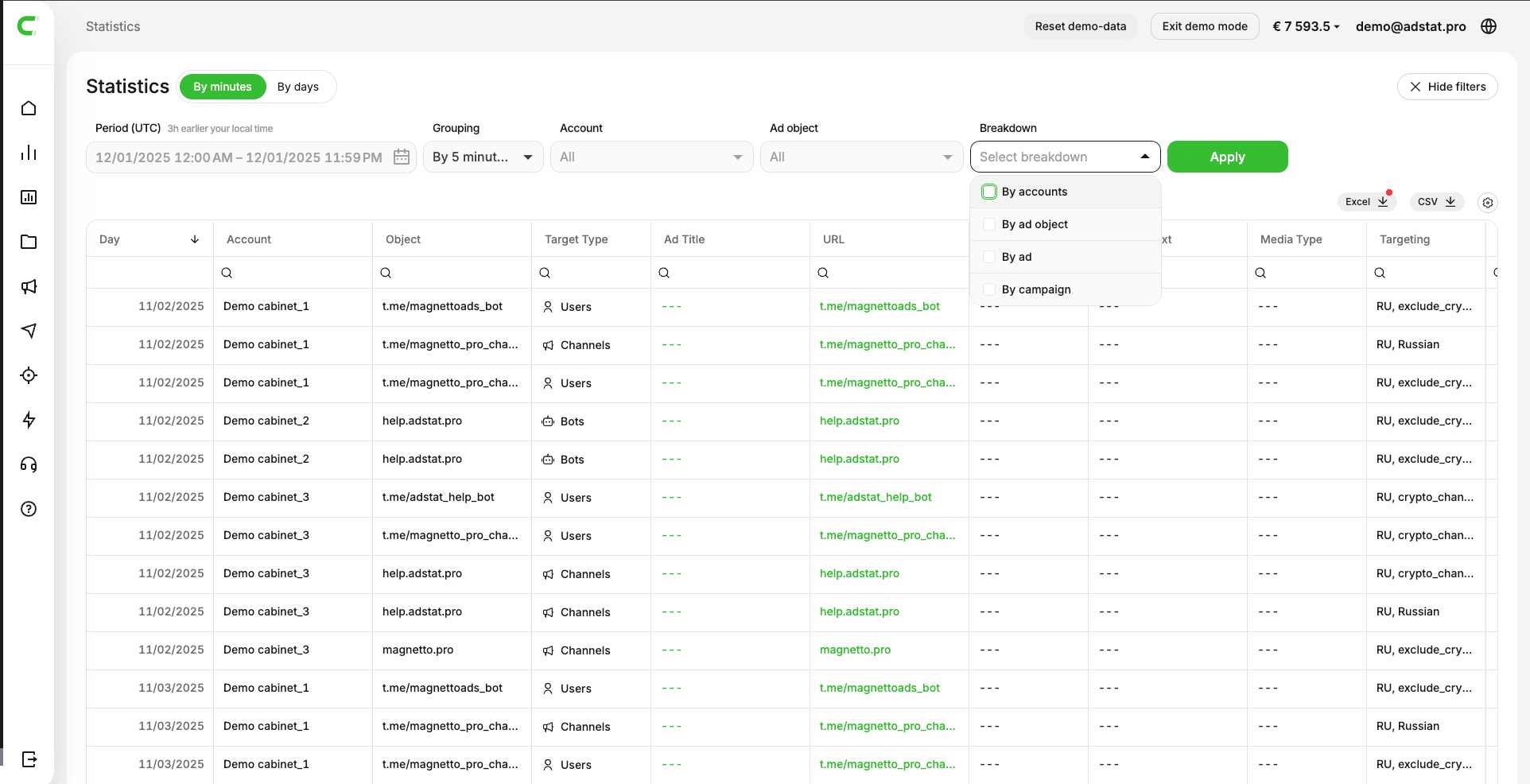
In the "Breakdown by" block, specify the structure in which you want to receive data.
Available options:
- By campaigns
- By accounts
- By advertising objects
- By ads
Multiple selection is supported. The "By campaigns" and "By accounts" options cannot be selected simultaneously.
▶️ Account and Object Filters
To refine the data export, you can use filters:
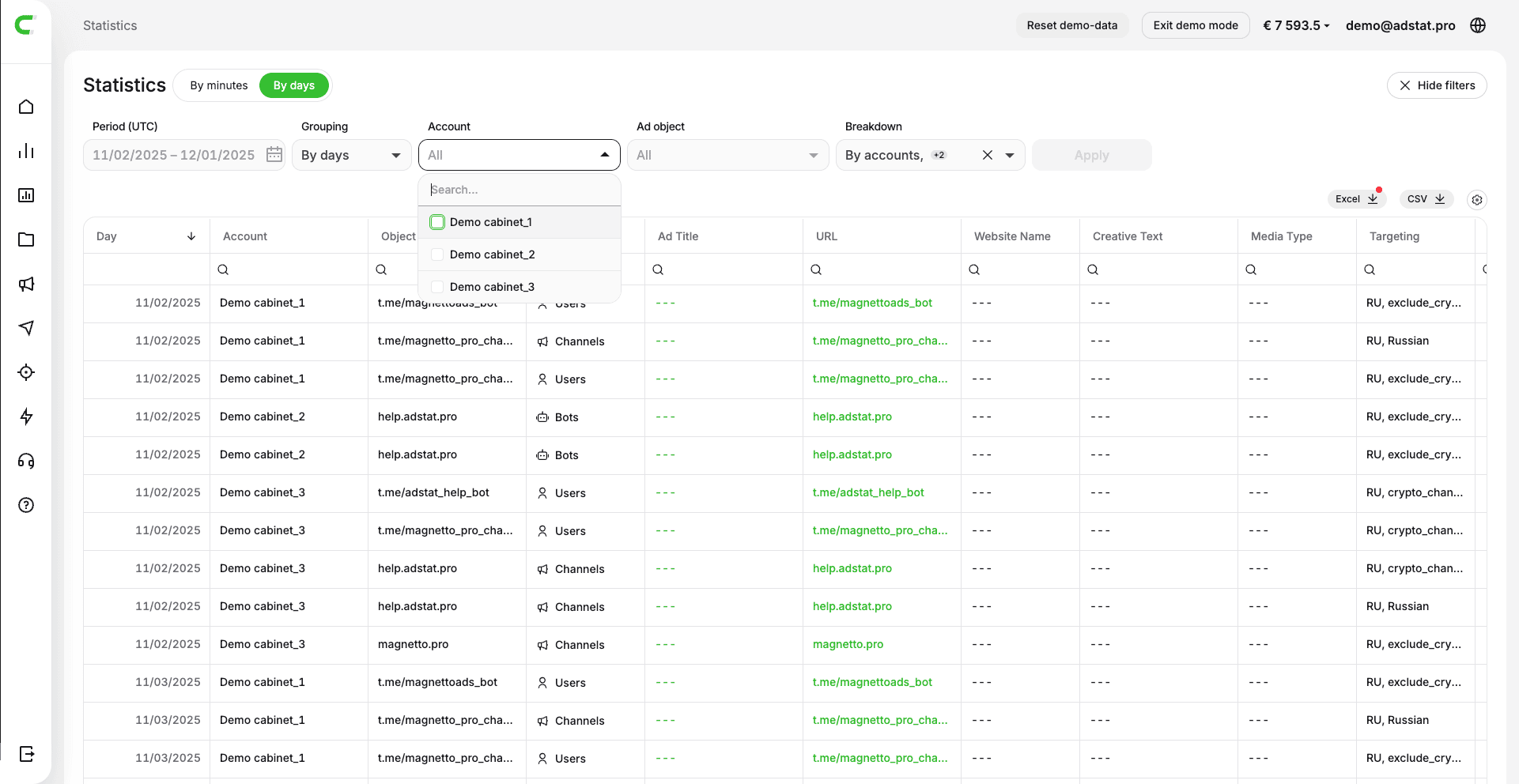
- Accounts — if nothing is selected, all accounts available in your adstat.pro account will be exported.
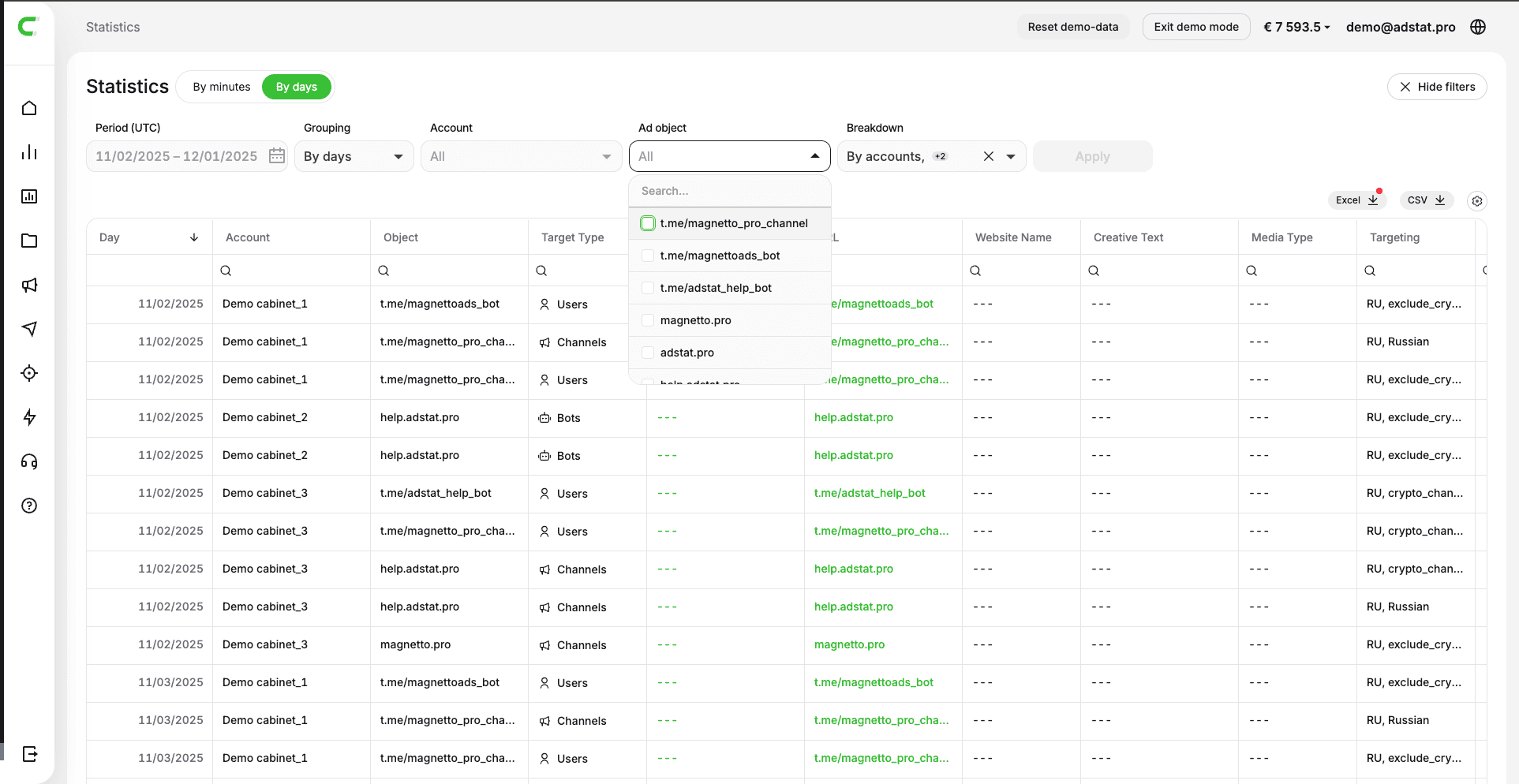
- Advertising object — if nothing is selected, all objects advertised within the available Telegram Ads accounts will be exported.
- If accounts are selected in the "Accounts" filter, then only objects from the selected accounts will be available in "Advertising objects".
🔹 Table Settings
Available Data and Metrics
- Grouping — the selected data granularity in the "Grouping" filter
- Spend — total advertising spend
- Impressions — number of ad creative impressions
- Clicks — number of clicks on the ad creative
- Video opens — number of video opens
- Actions — number of completed target actions
- CTR% — click-through rate (Clicks / Impressions × 100)
- CVR% — conversion rate (Actions / Clicks × 100)
- CPM — cost per 1000 impressions
- CTC — cost per click (Spend / Clicks)
- CTA — cost per action (Spend / Actions)
- Targeting by — targeting type
- Account — Telegram Ads account name
- Campaign — advertising campaign name
- Ad name — ad name
- Advertising object — the object you are advertising
- URL — link for tracking transitions
- Website name — name of the advertised website
- Creative text — ad text
- Media type — video or image
- Targeting — selected ad targeting
- Interests — list of selected interests
- Impression frequency — how many times the ad was shown to one user
- Button text — CTA button text
- Action type — type of tracked action
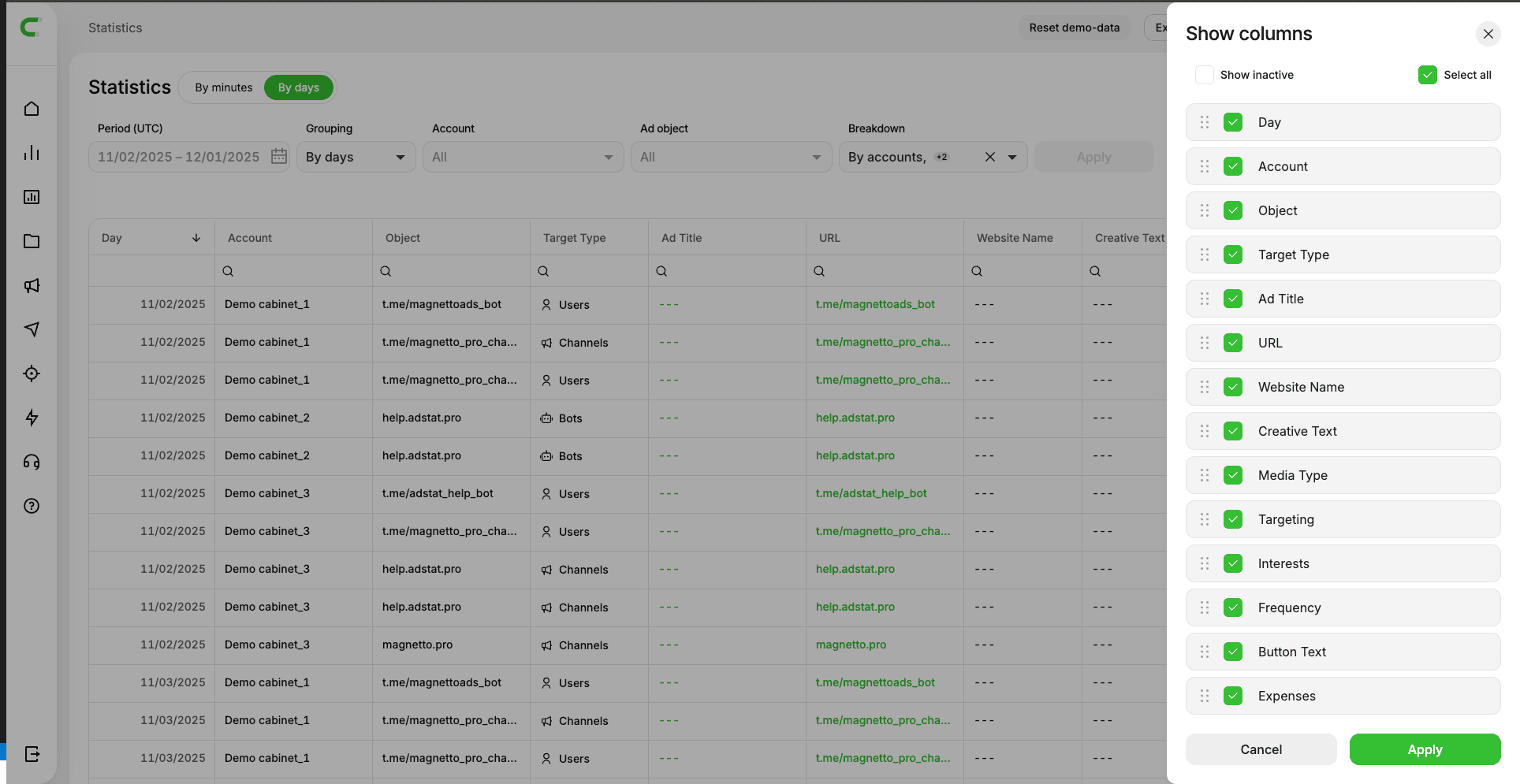
Only metrics selected through the gear icon are displayed.
To change the column display order — drag them to the desired order.
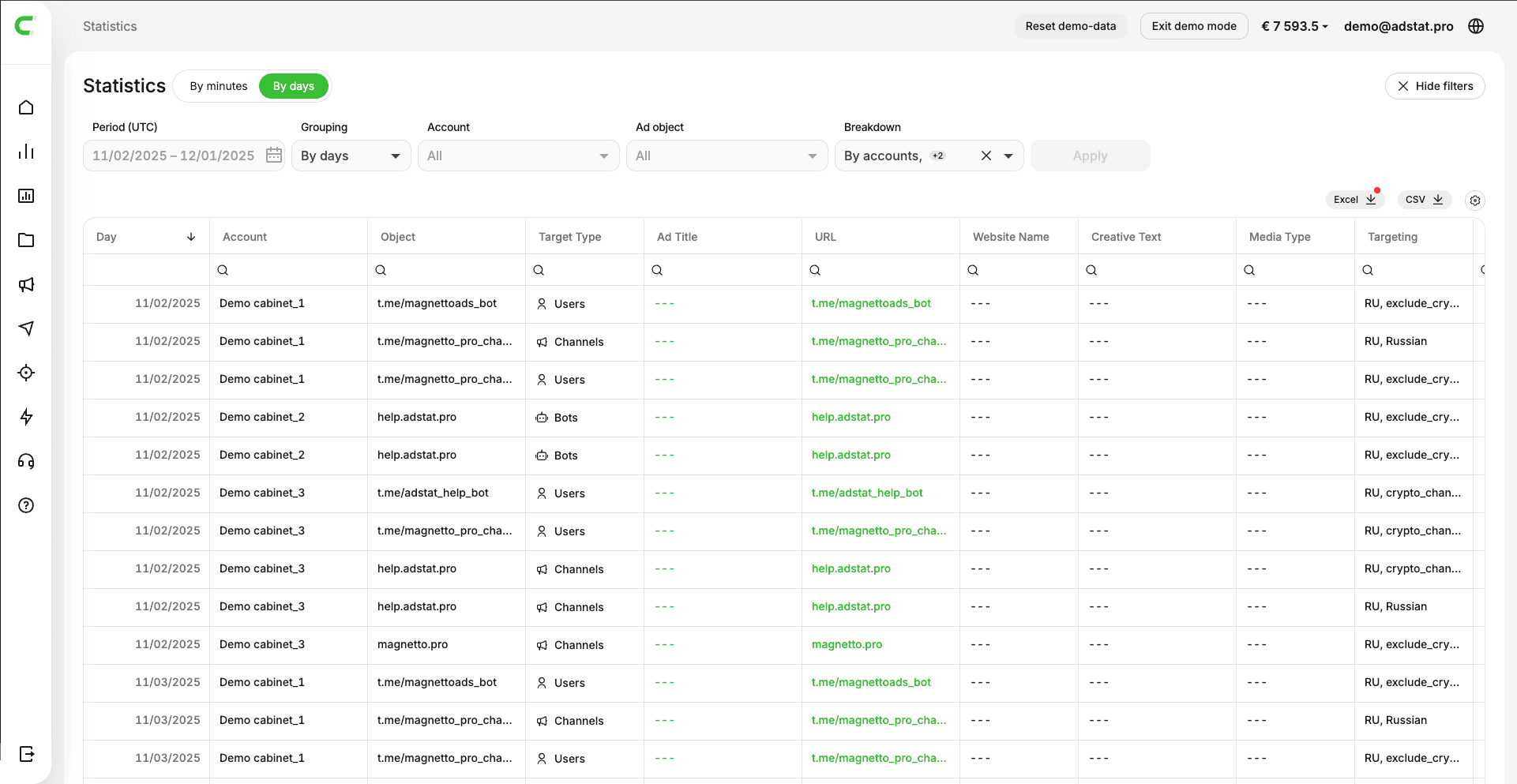
You can also download statistics in Excel or CSV format.
🔹 Use Cases
- Overall performance — no breakdown, any period, data and metrics as selected
- Campaign comparison within one account — "Campaigns" breakdown, one account selected
(the "Accounts" column is always displayed when breaking down by campaigns) - Analysis of advertising objects within one account — "By advertising objects" breakdown
🔹 Generating Report
Click "Show statistics".
Available actions:
- column sorting
- row copying
- saving selected settings
- downloading statistics in Excel and CSV formats
⚠️ Important Notes
- Without breakdown, overall statistics is displayed
- Without a selected account, statistics is displayed for all accounts
- Period is required
- All data is displayed in UTC timezone